
In Good Order
Tasks & Plans
Give every task a place. Plan your day, organize projects, keep notes and checklists, and repeat routines on your own schedule.
In development · Public download not yet available
- iOS 17 or later
- iPadOS 17 or later
- watchOS 10 or later; paired iPhone required
Screenshots
On iPhone
On iPad
A clearer day.
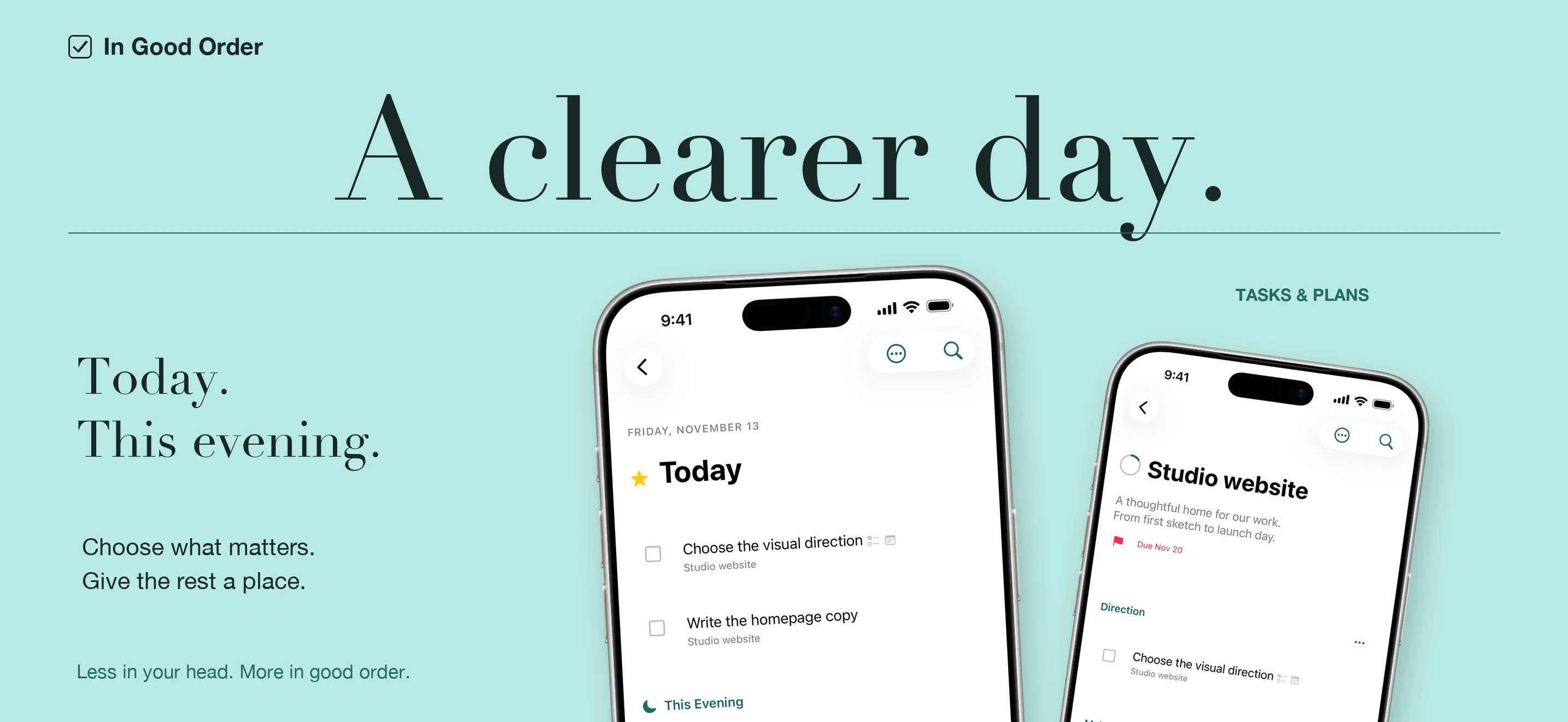
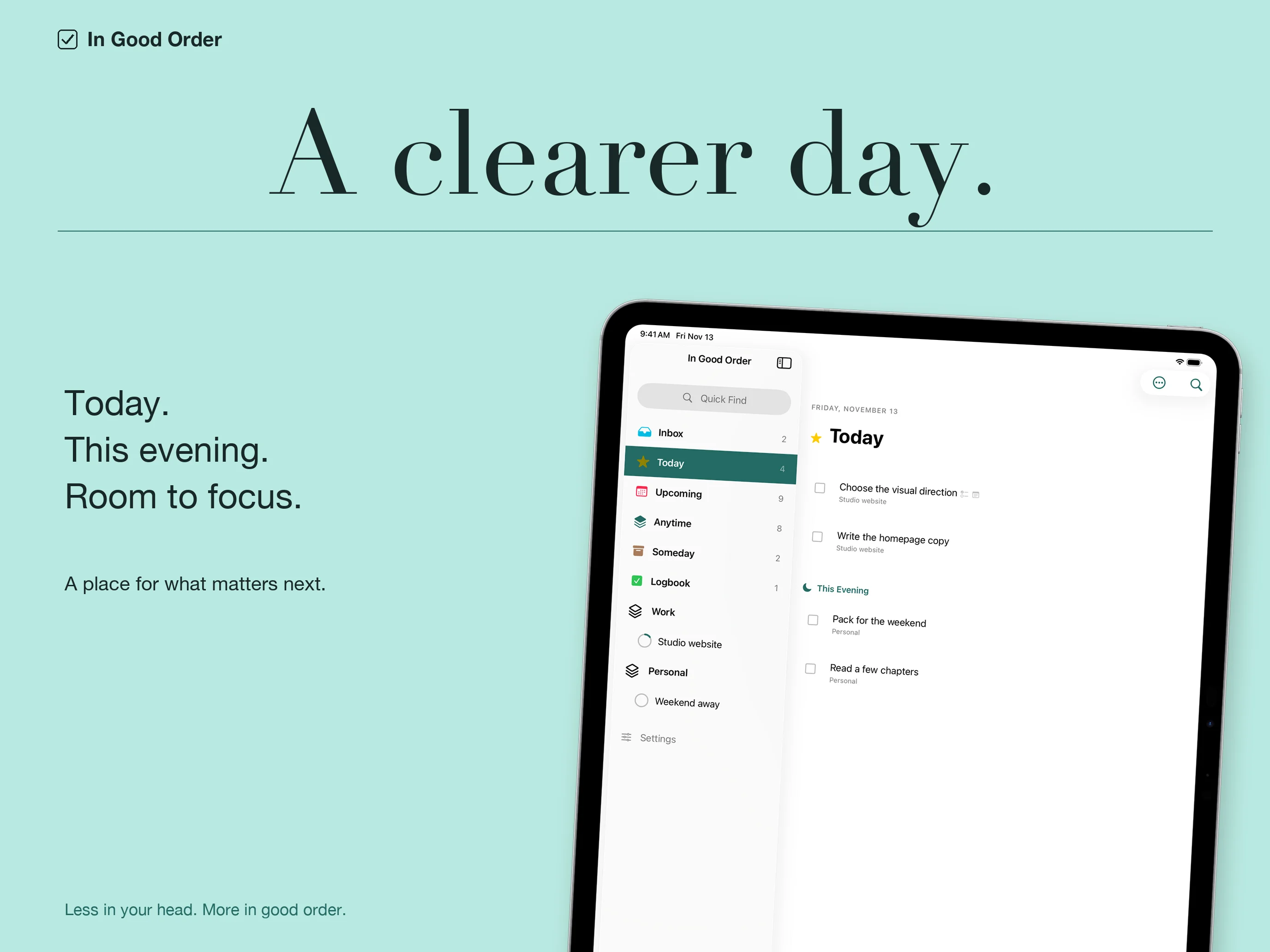
Capture a thought in Inbox, choose what belongs in Today, and leave room for This Evening. In Good Order helps you turn a collection of to-dos into a plan you can work through, one step at a time.
In Good Order is currently in development for iPhone and iPad, with an Apple Watch companion. The app requires iOS 17 or iPadOS 17; the companion requires watchOS 10 and a paired iPhone. Download and final pricing details will appear here when available.
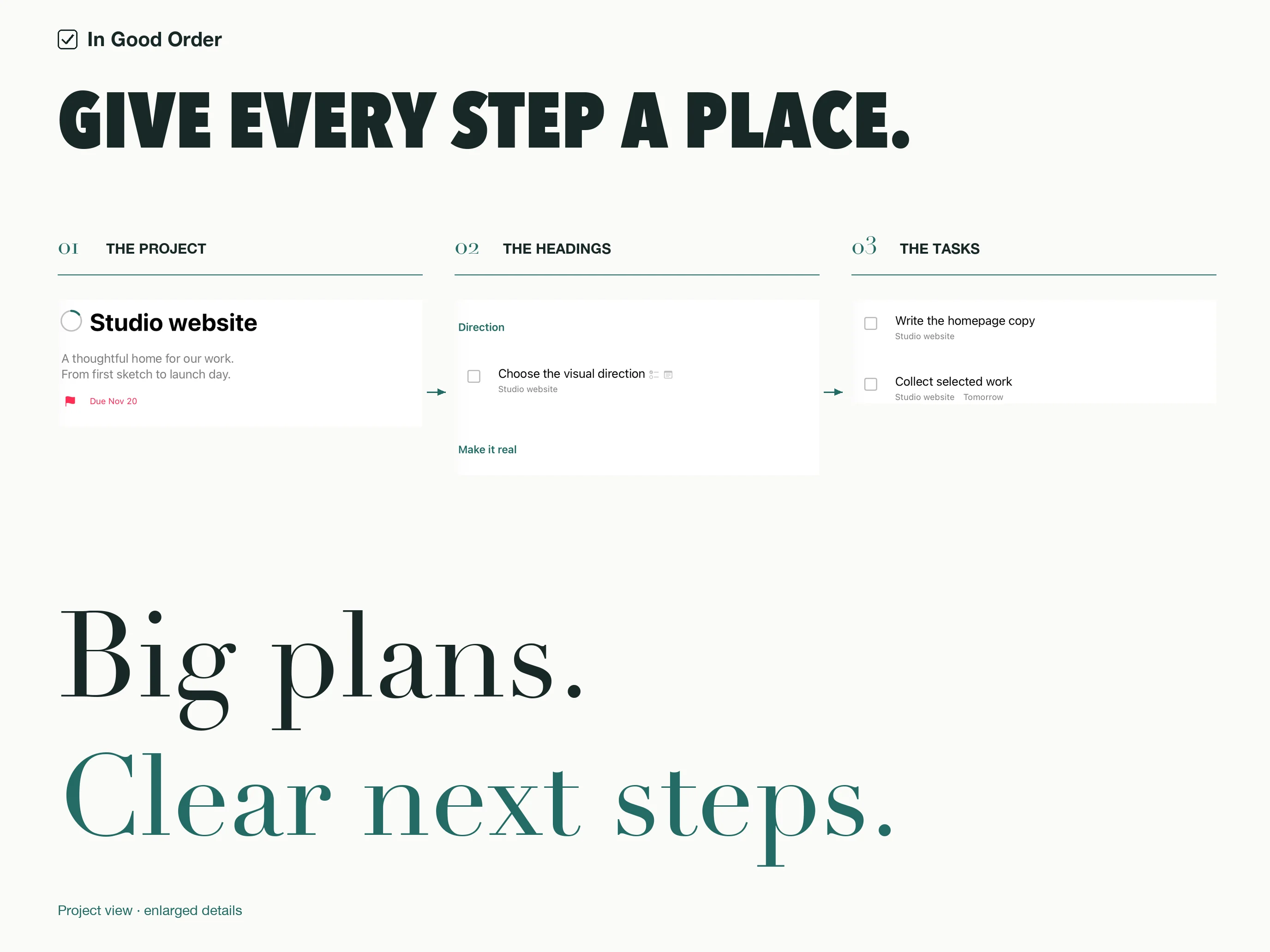
Give every step a place
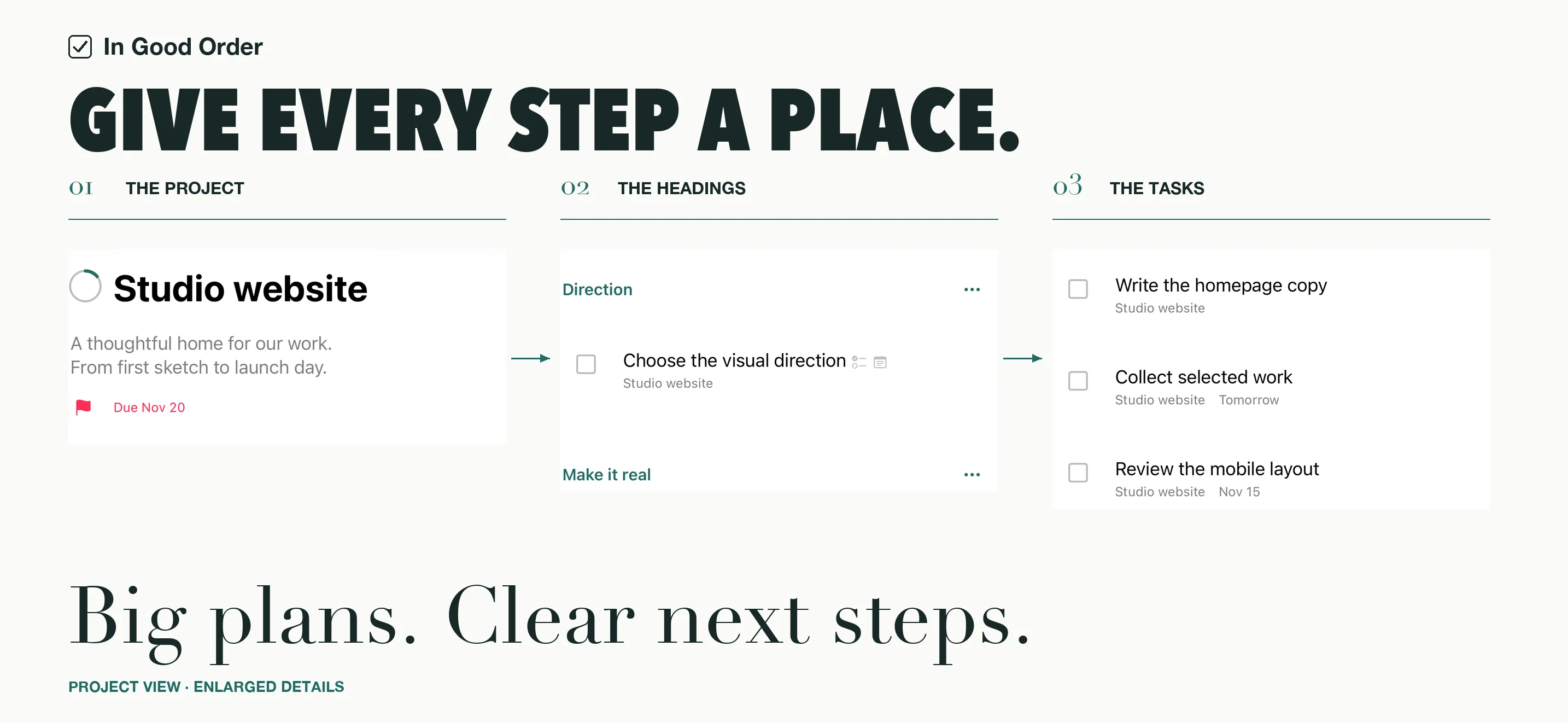
Group a larger plan into a project, divide it with headings, and follow its progress as tasks are completed. Areas keep related projects and standalone tasks together, whether they belong to work, home, or a longer-term goal.
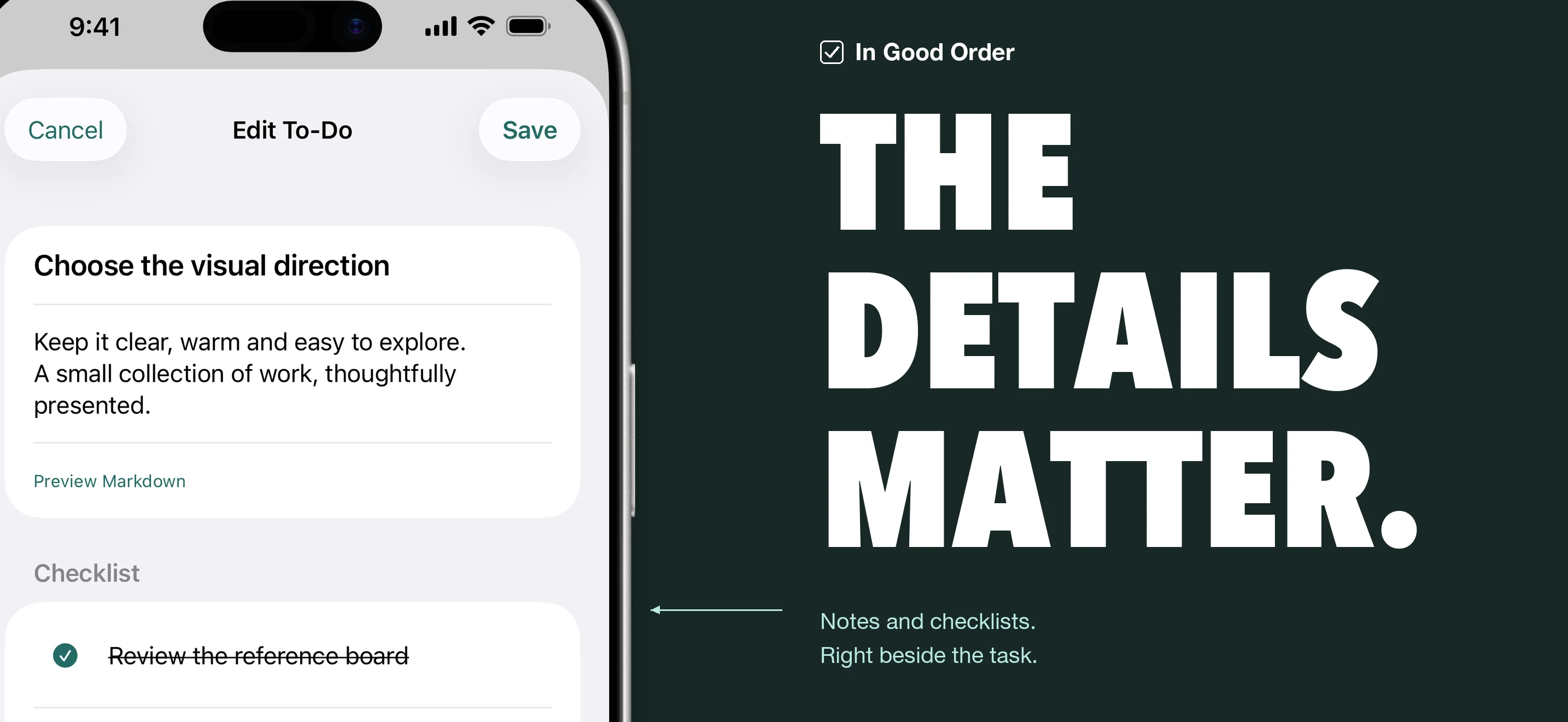
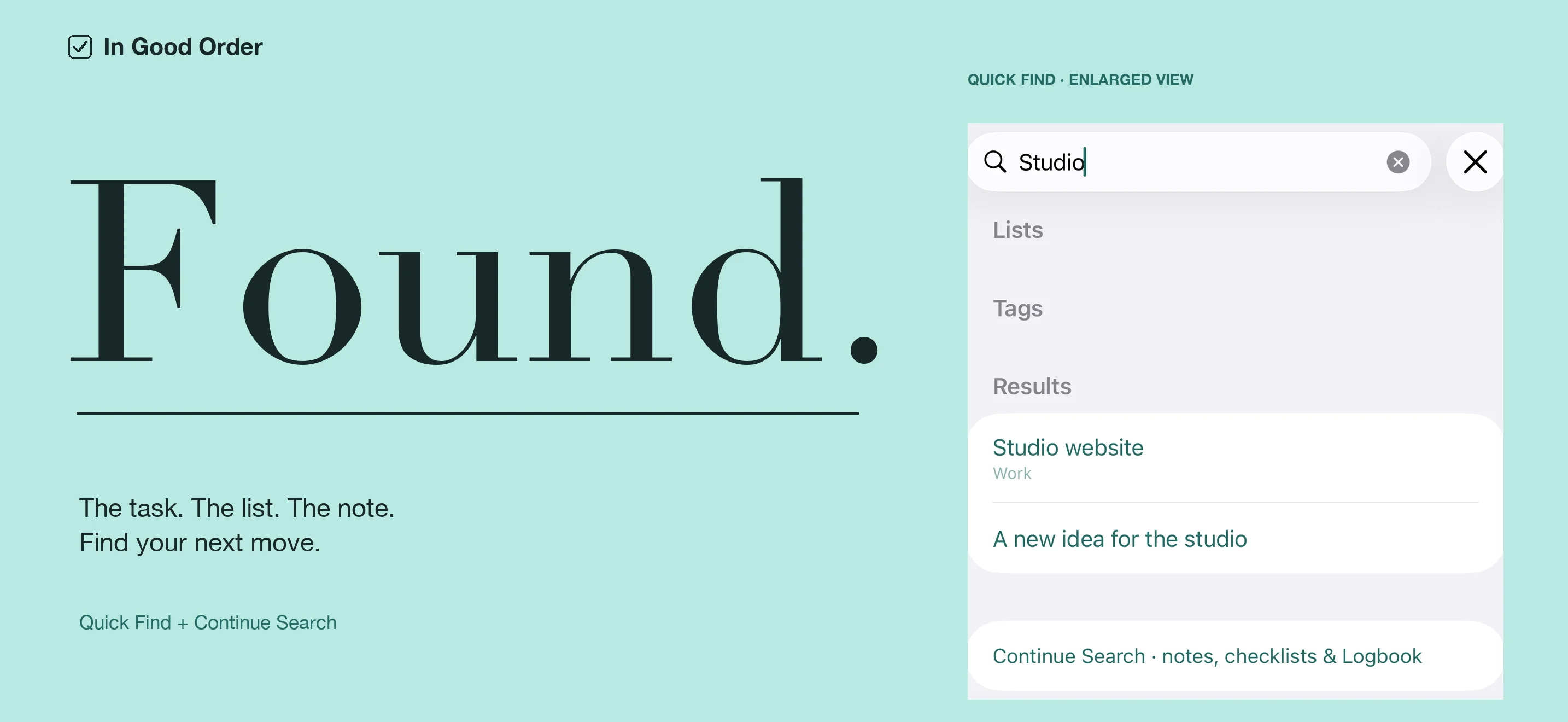
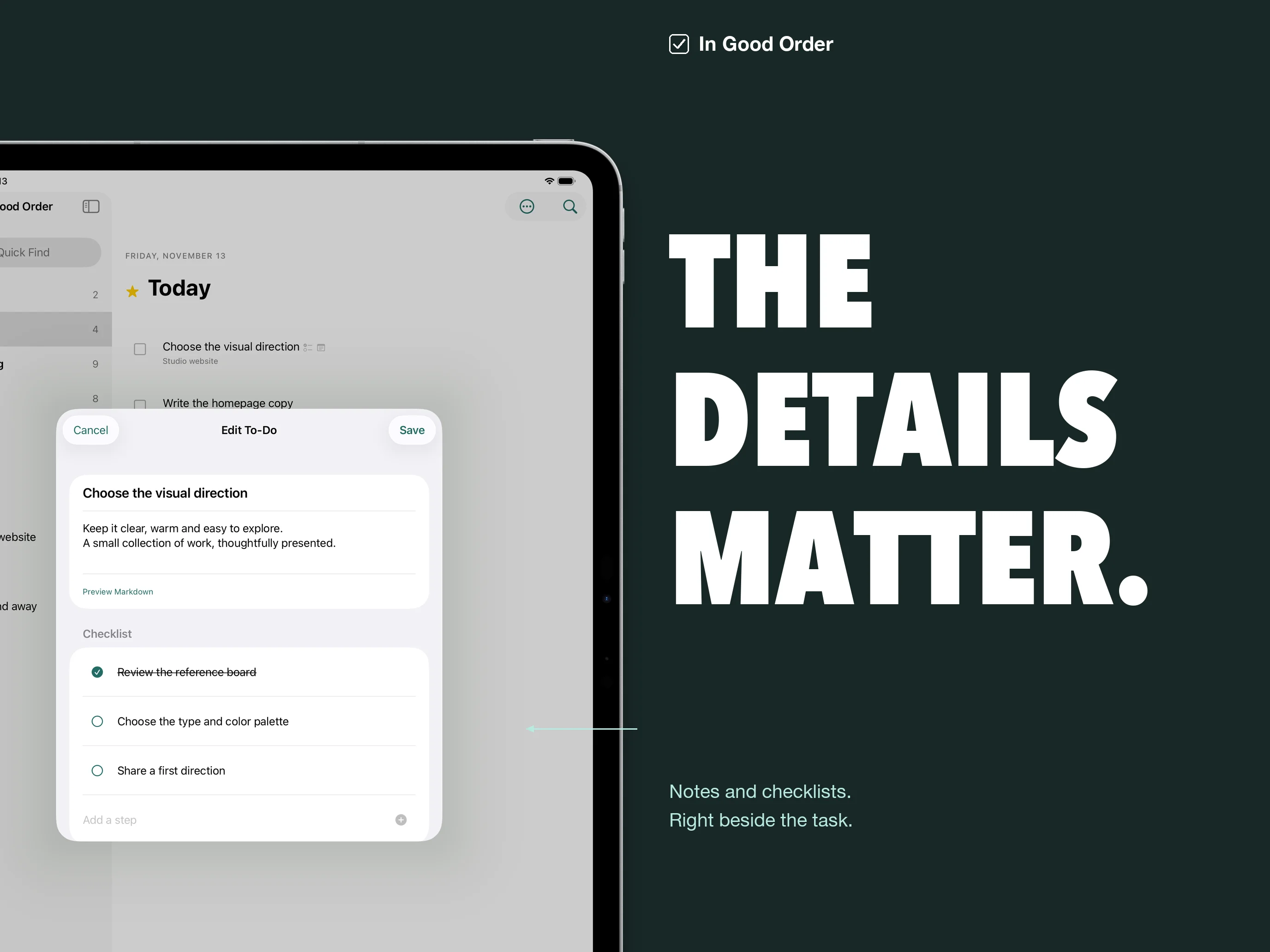
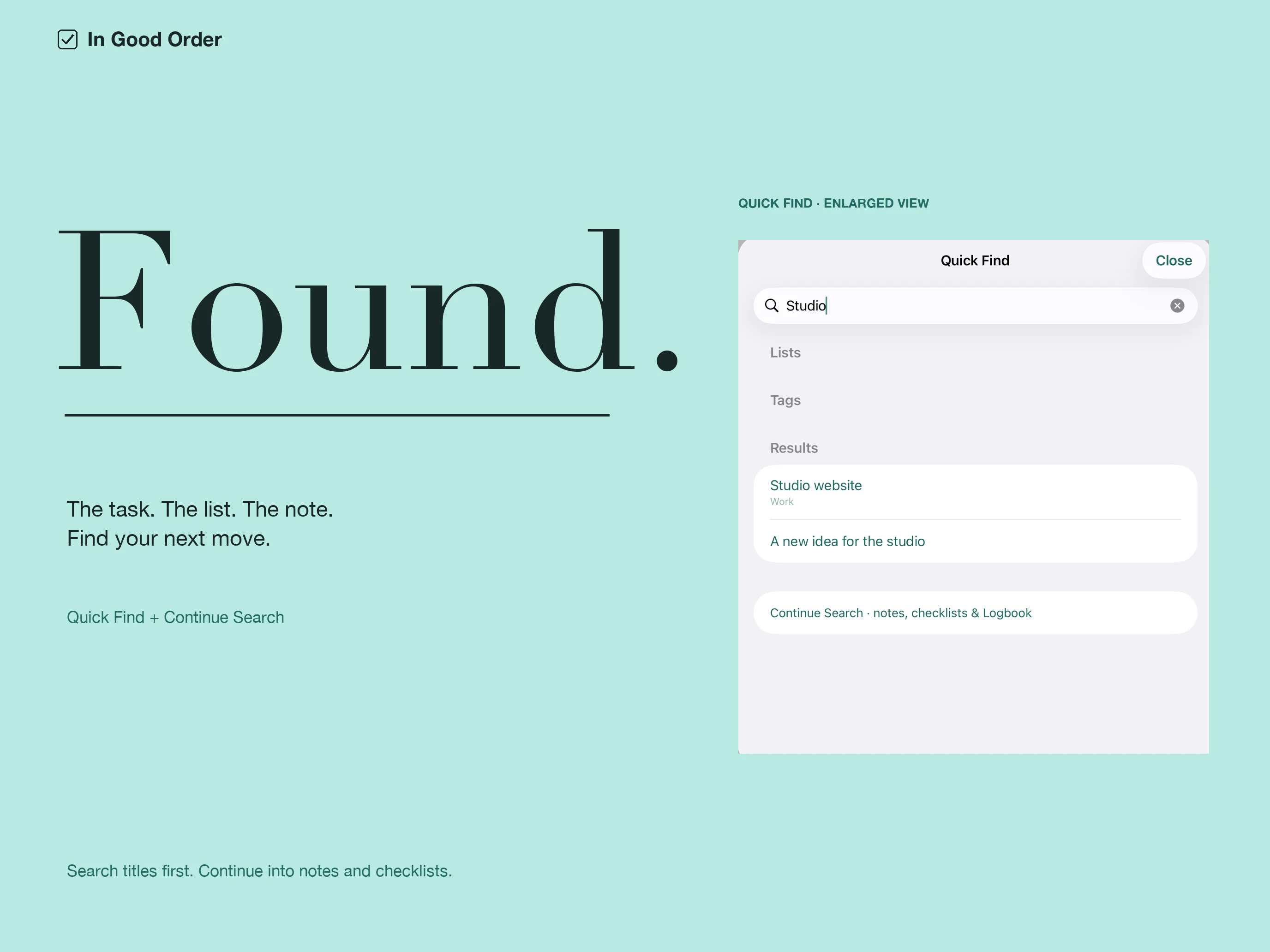
Keep notes, Markdown previews, and checklists beside each task. Tags help connect work across lists. Quick Find takes you back to a task or list; Continue Search also looks through notes, checklists, and completed records.
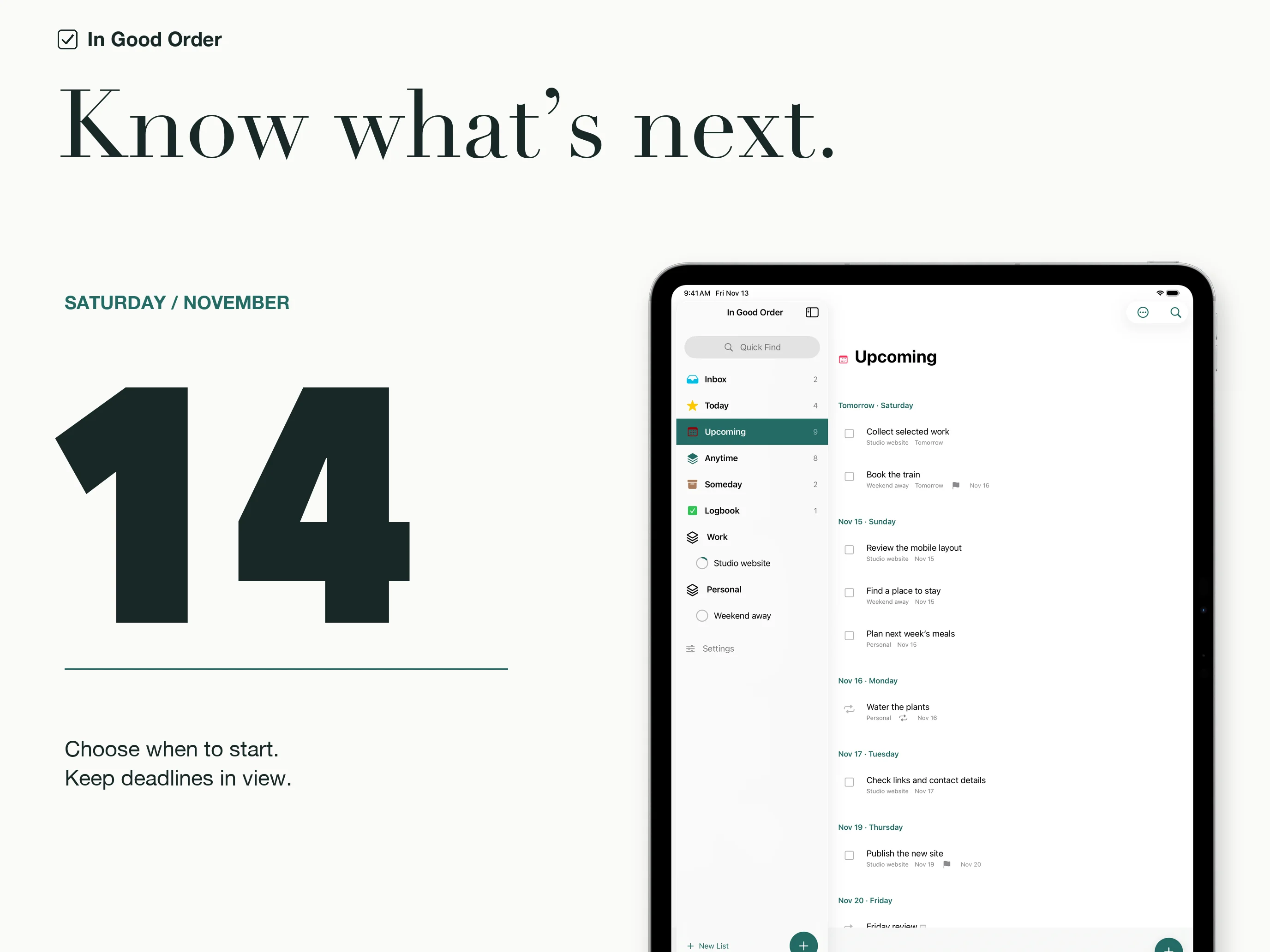
Know what’s next
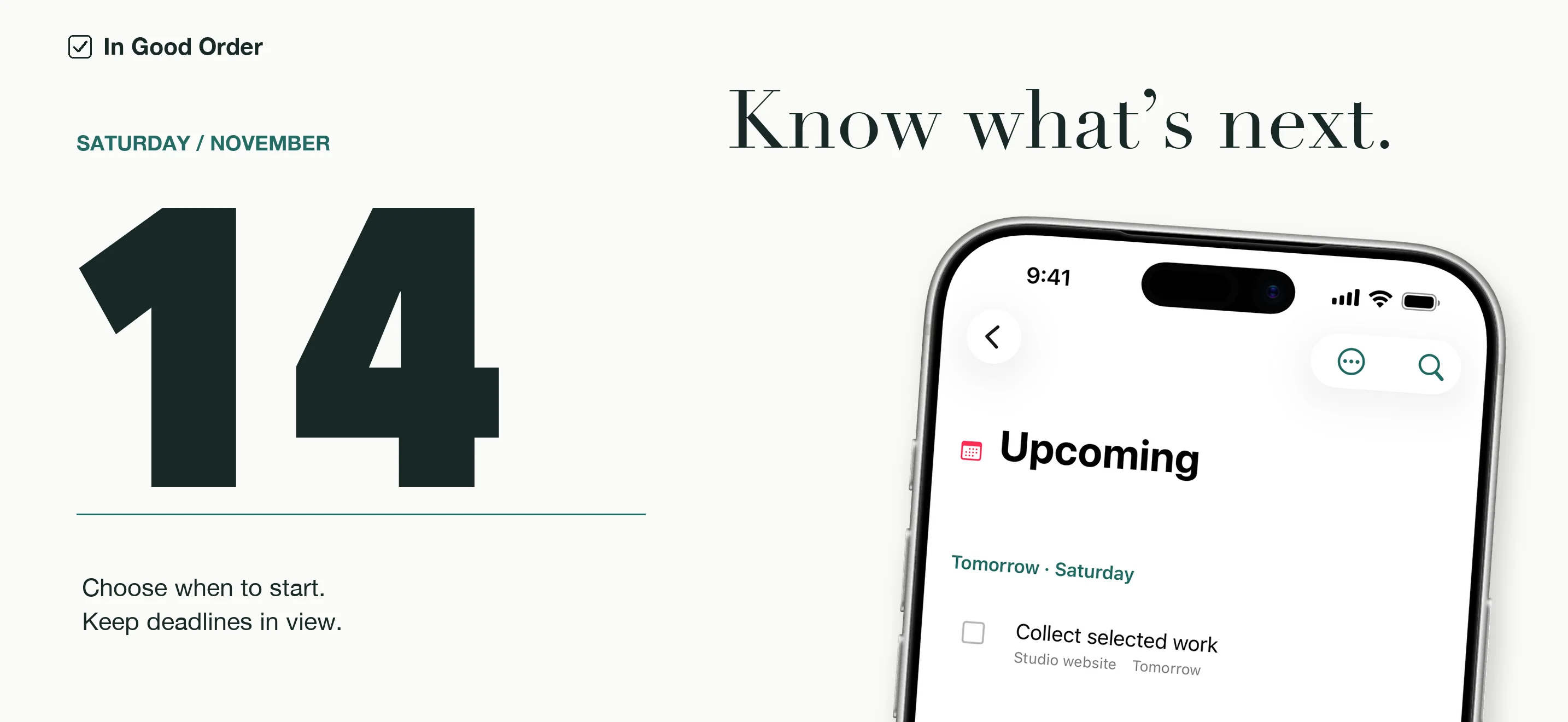
Choose a start date without changing the deadline. Today, Upcoming, Anytime, and Someday give scheduled work and open-ended ideas their own places. Move a task to This Evening when it belongs later in the day.
With permission, show selected calendar events alongside your plans. In Good Order reads those events without editing them. You can also import incomplete Apple Reminders into your library while leaving the originals in Reminders.
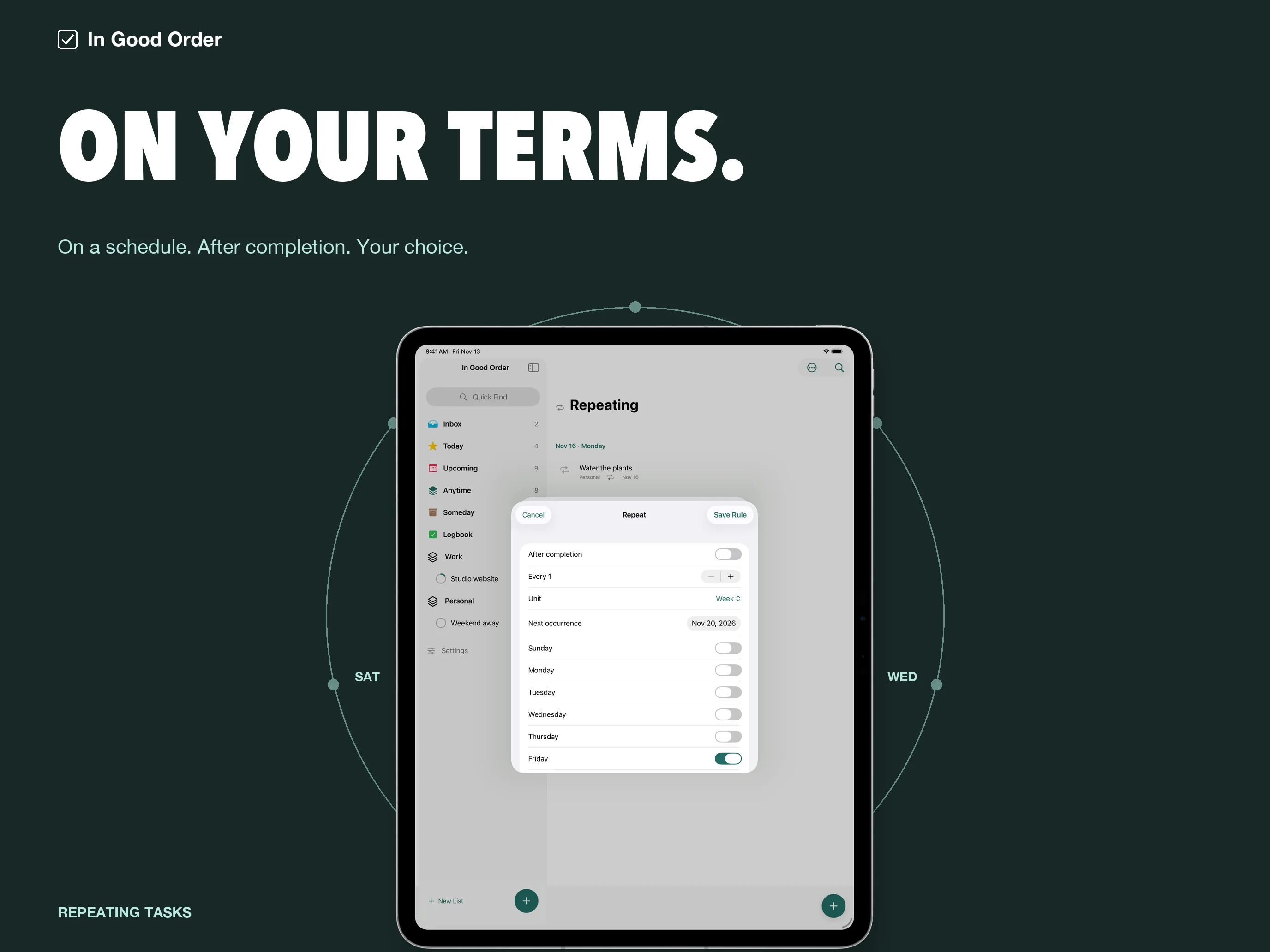
Repeat on your terms
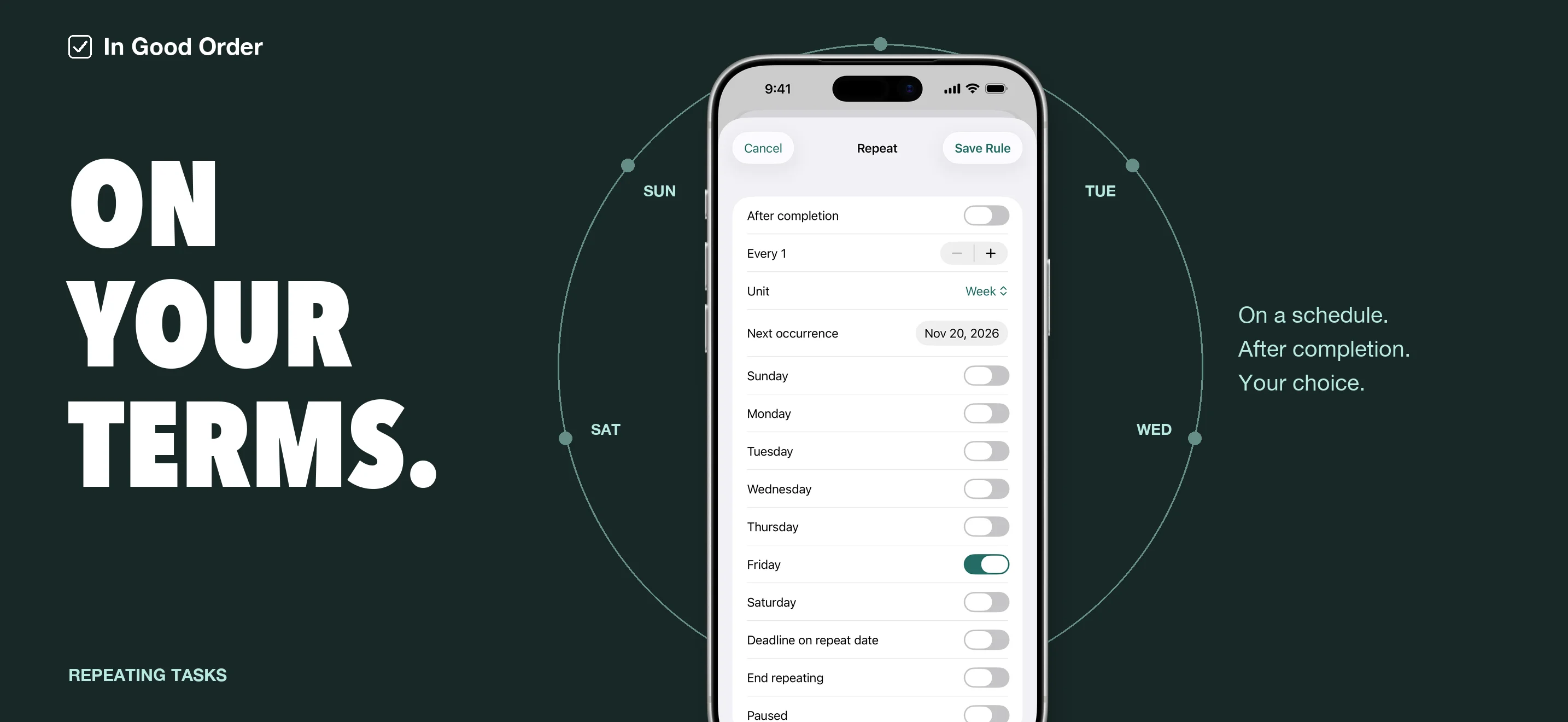
Set a recurring task to follow a regular schedule or repeat after completion. Choose days of the week, monthly patterns, or yearly dates. Projects can repeat too, with separate task copies for each occurrence.
Pause a repeating template when you need a break, or stop it when a routine has run its course. Completed work stays in Logbook, where you can revisit or reopen it.
Close at hand
Bring text and links into Inbox through the share menu, see a chosen list in a widget, or create and edit items with Apple Shortcuts. On iPad, open a second window and move tasks between lists.
The Apple Watch companion keeps Today and Inbox nearby, with task capture, checklists, and completion. It exchanges changes with the paired iPhone and queues changes when that connection is unavailable. This does not provide automatic library sync between iPhone and iPad.
A library on your device
There is no account to create. Your tasks, notes, tags, and preferences stay in local storage, with JSON backups you can export and later merge from Files. Choose a safe place for those backups, especially before moving to another device.
Frequently asked questions
Does In Good Order sync between iPhone and iPad?
No. There is currently no automatic cross-device library sync or developer-operated cloud service. Export and import a library backup to transfer records manually. The paired Apple Watch connection is a separate feature.
What is the difference between a start date and a deadline?
A start date says when you intend to work on an item. A deadline records when it is due. They are stored separately, so moving the start date does not silently move the deadline.
Does importing reminders change Apple Reminders?
No. Import copies incomplete reminders into In Good Order and leaves the originals in place. The two copies are not kept in sync. Calendar events are read for display and are not edited or copied into the task library.
How do I keep a backup?
Choose Settings → Export Library Backup and save the JSON file. Import Library Backup merges a selected backup after confirmation; it does not simply replace everything. Backups include private notes, so choose their destination carefully.
Why might a later reminder not appear?
The app schedules the nearest 60 reminders. Open it periodically to refresh later reminders, and check notification permission and Focus settings if an alert is missing. A start date or deadline alone is separate from a timed reminder.
Questions about In Good Order?
Find setup information and get in touch on the support page.
← All apps