

RemindDart
Quick Entry for Apple Reminders
Capture a thought, choose a time, and save straight to Apple Reminders. Use time presets, repeating schedules, and saved places on iPhone, iPad, and Mac.
In development · Public download not yet available
- iOS 26 or later
- iPadOS 26 or later
- macOS 26 or later
Screenshots
On iPhone
On iPad
On Mac
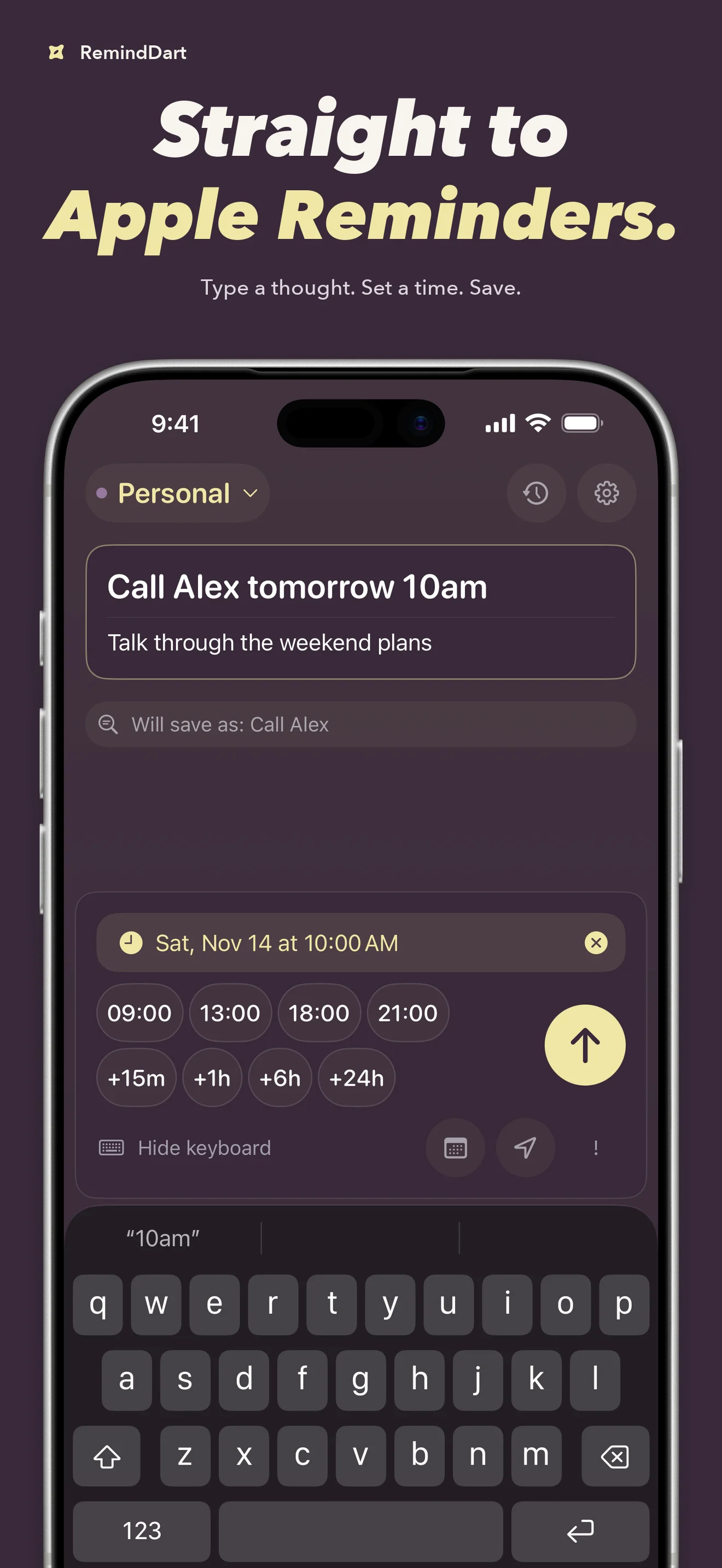
Straight to Apple Reminders
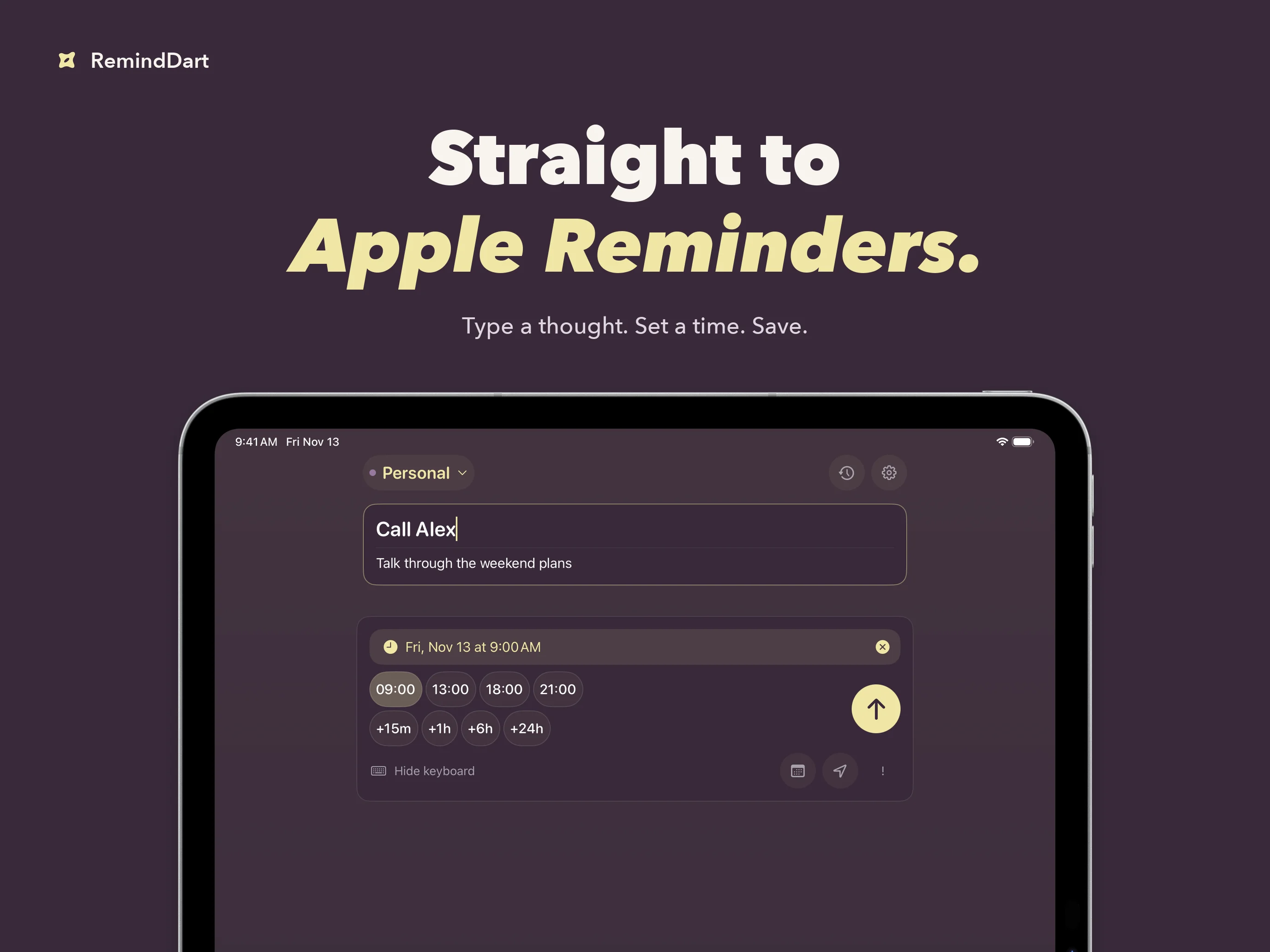
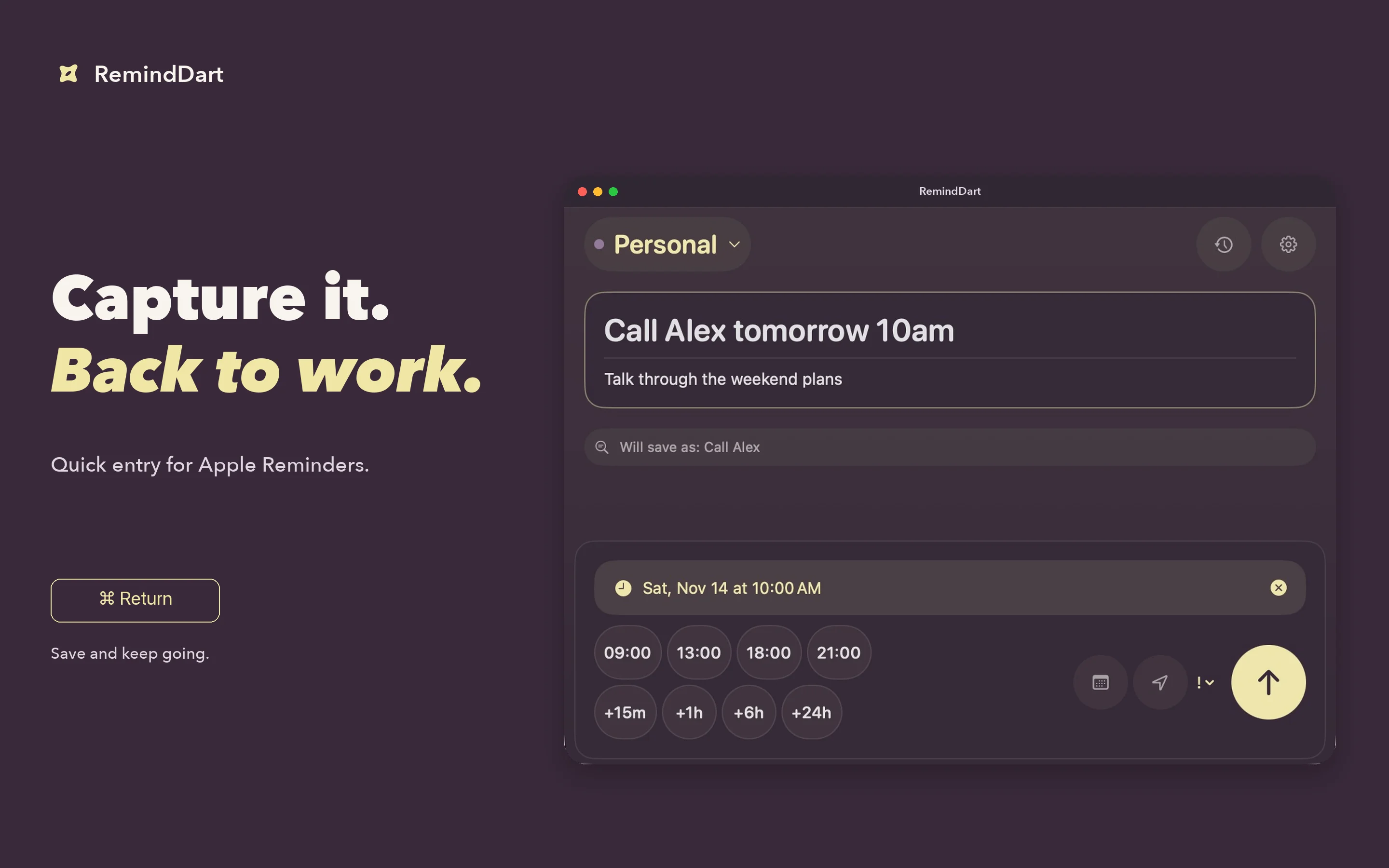
Type a thought, add a note, choose a list, and save. RemindDart writes directly to Apple Reminders, so your tasks stay in the lists you already use. After saving, the composer is ready for your next thought.
RemindDart is currently in development for iPhone, iPad, and native Mac, requiring iOS 26, iPadOS 26, or macOS 26 or later. Public download and pricing details will be added when confirmed.
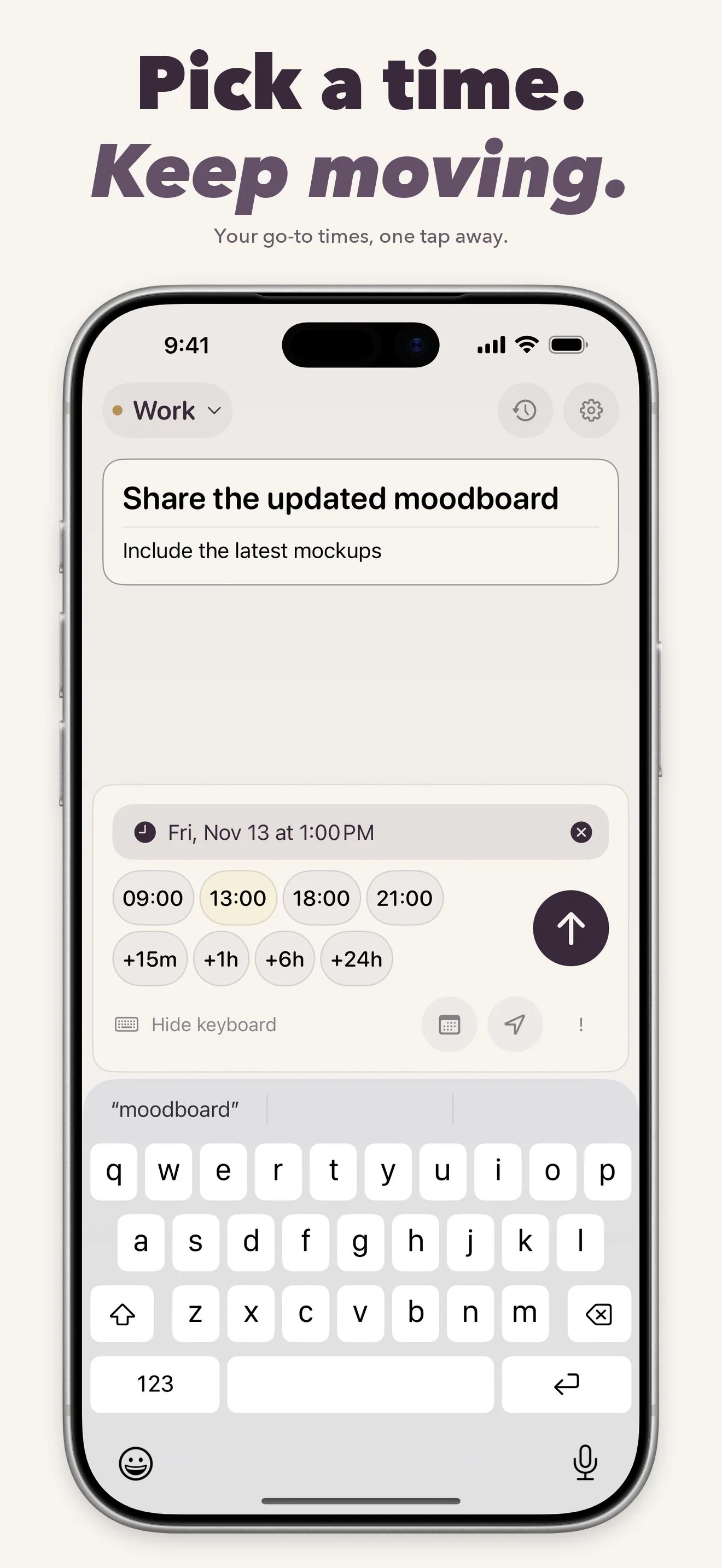
Pick a time. Keep moving.
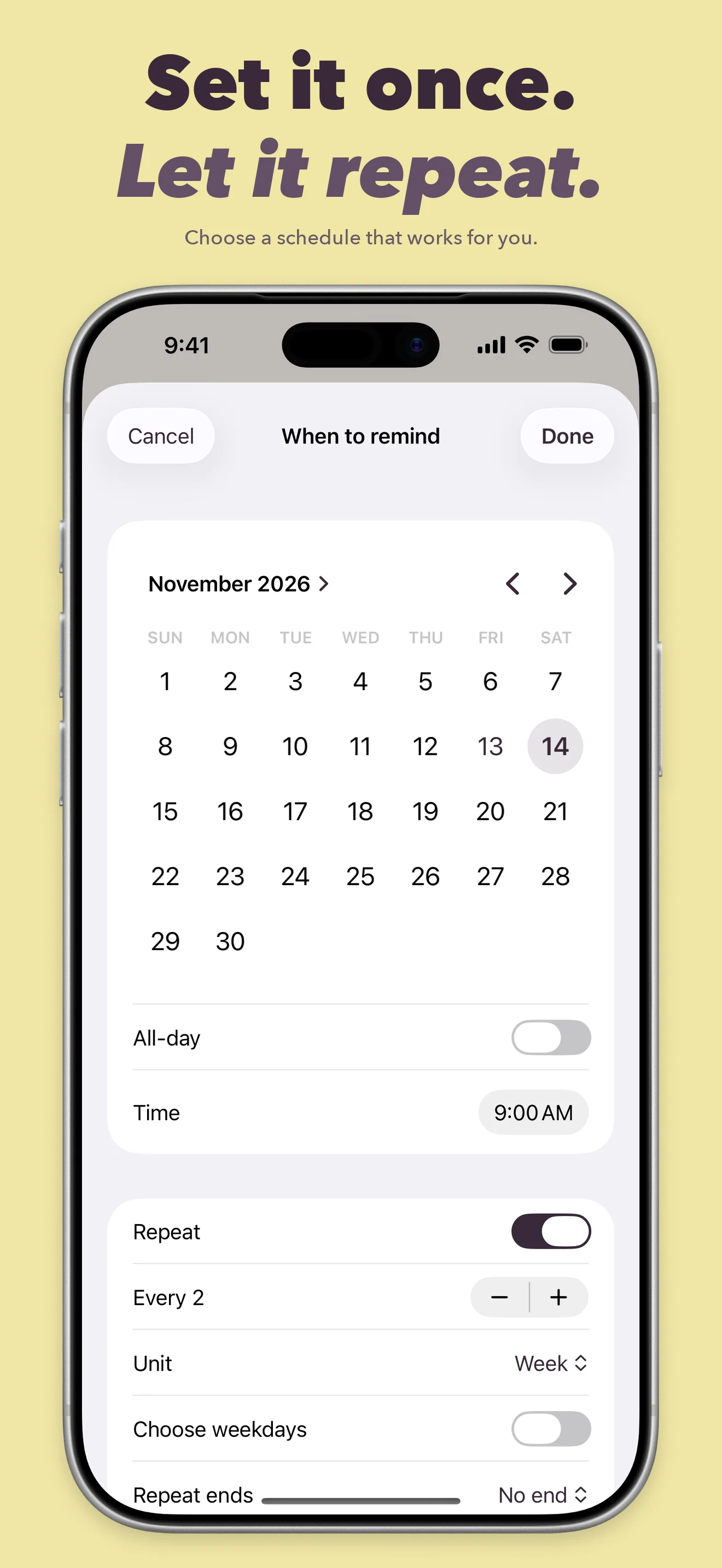
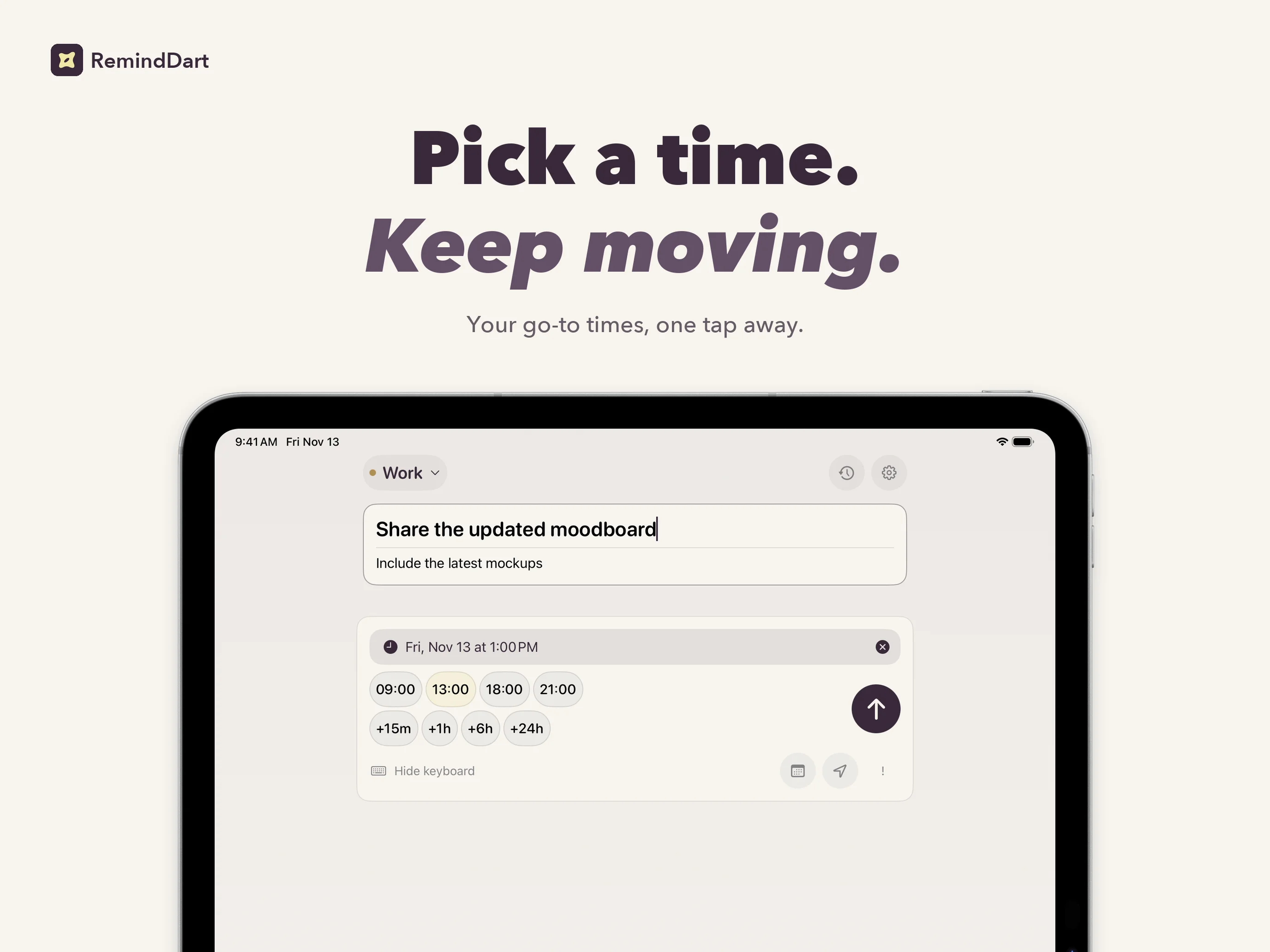
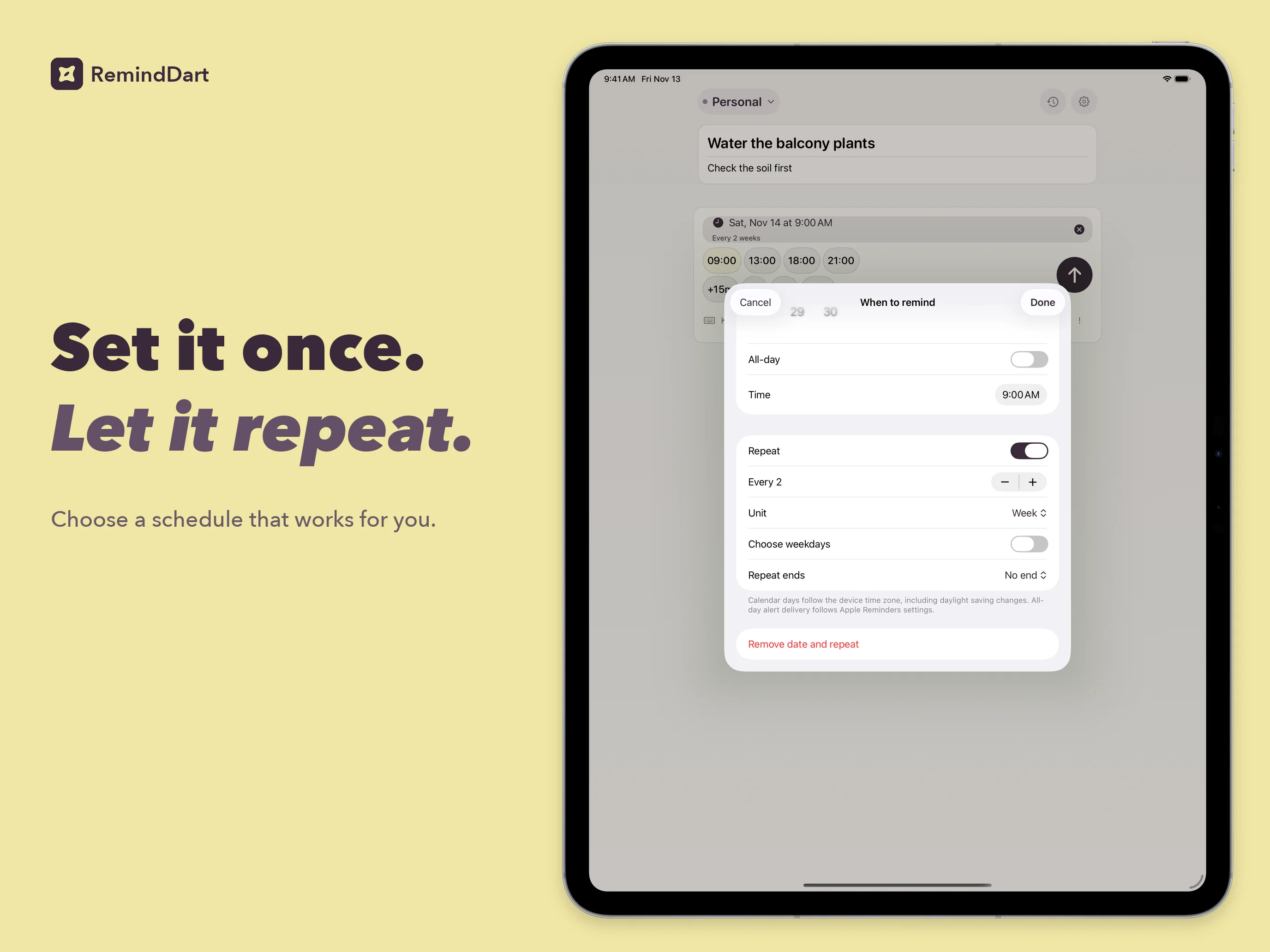
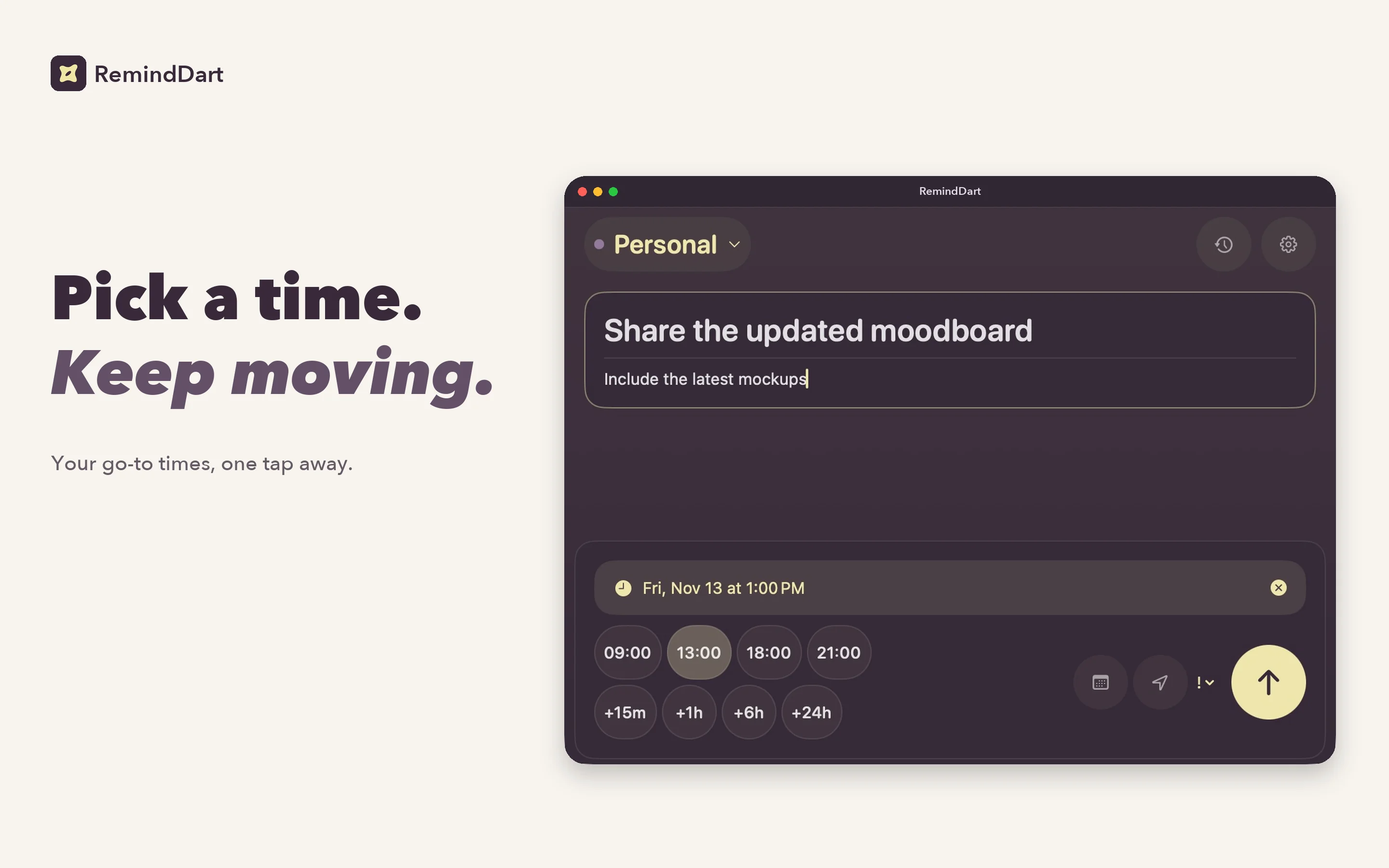
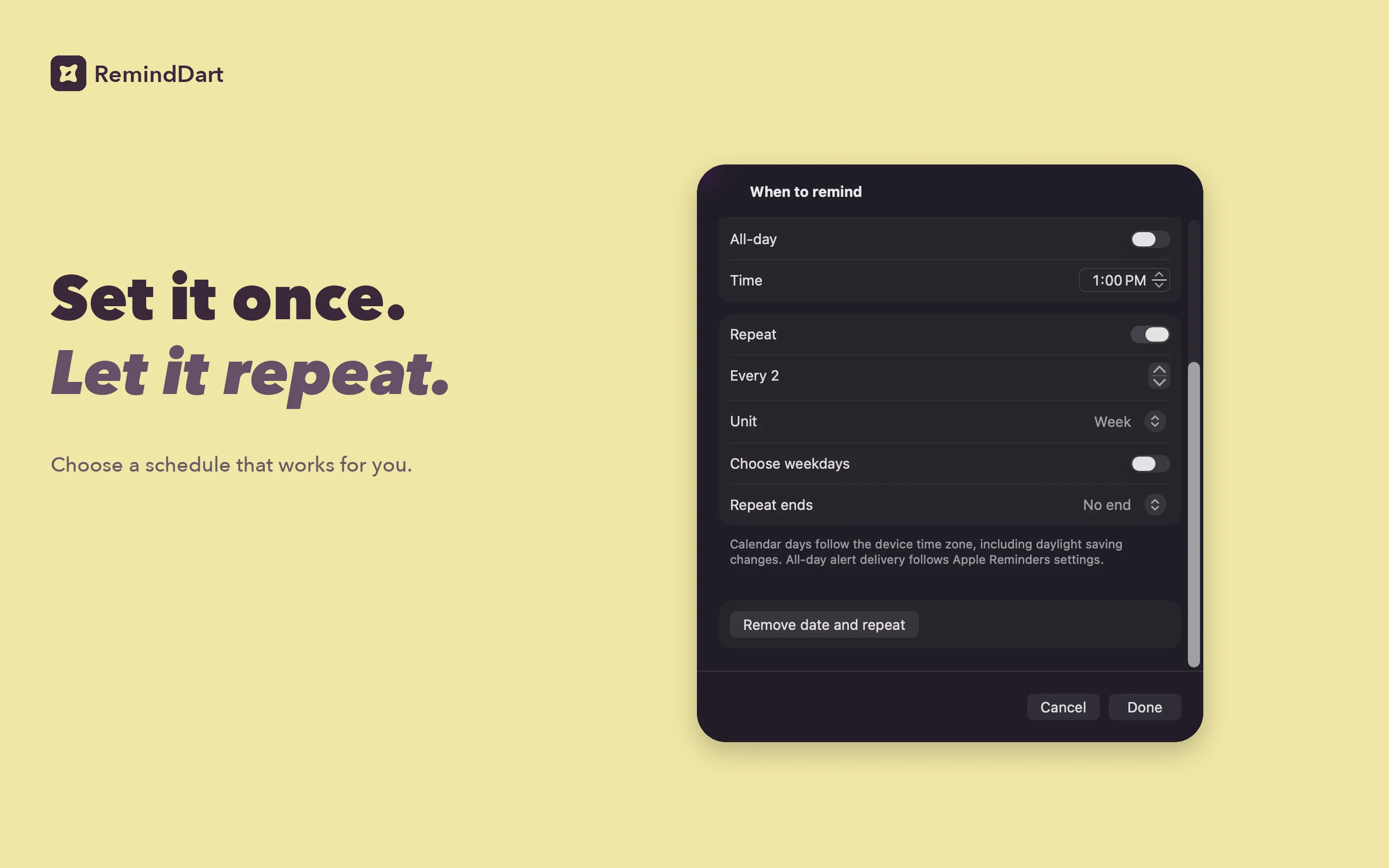
Use a favorite time or a relative delay with one tap. Open the date controls for an exact time, an all-day date, or a daily, weekly, monthly, or yearly repeat. Set priorities and choose which lists default to today.
Prefer typing? Common English, French, and German schedule phrases are interpreted on your device. Try “Call Alex tomorrow 10am.” Review the parsed title, date, and list before saving, or turn parsing off and use the controls.
A place for every reminder
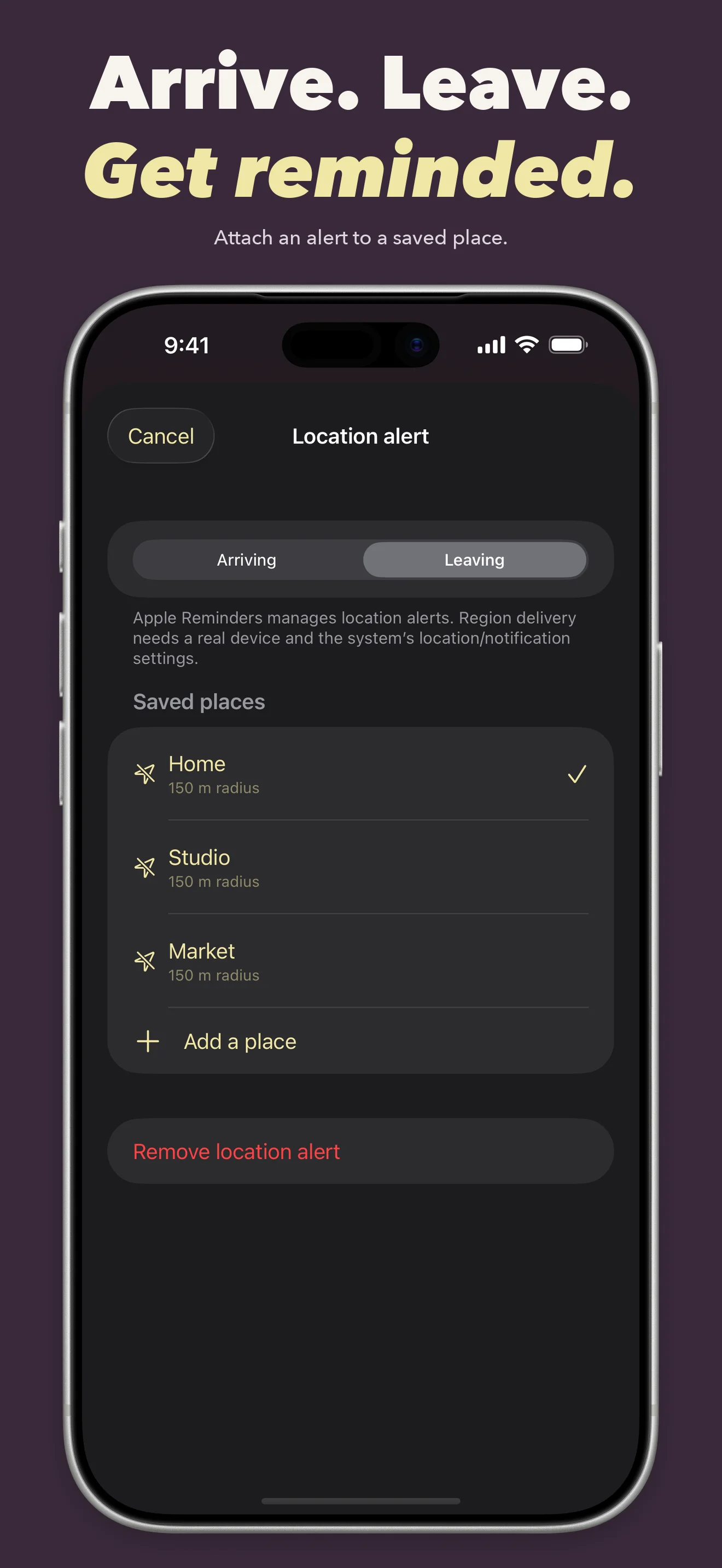
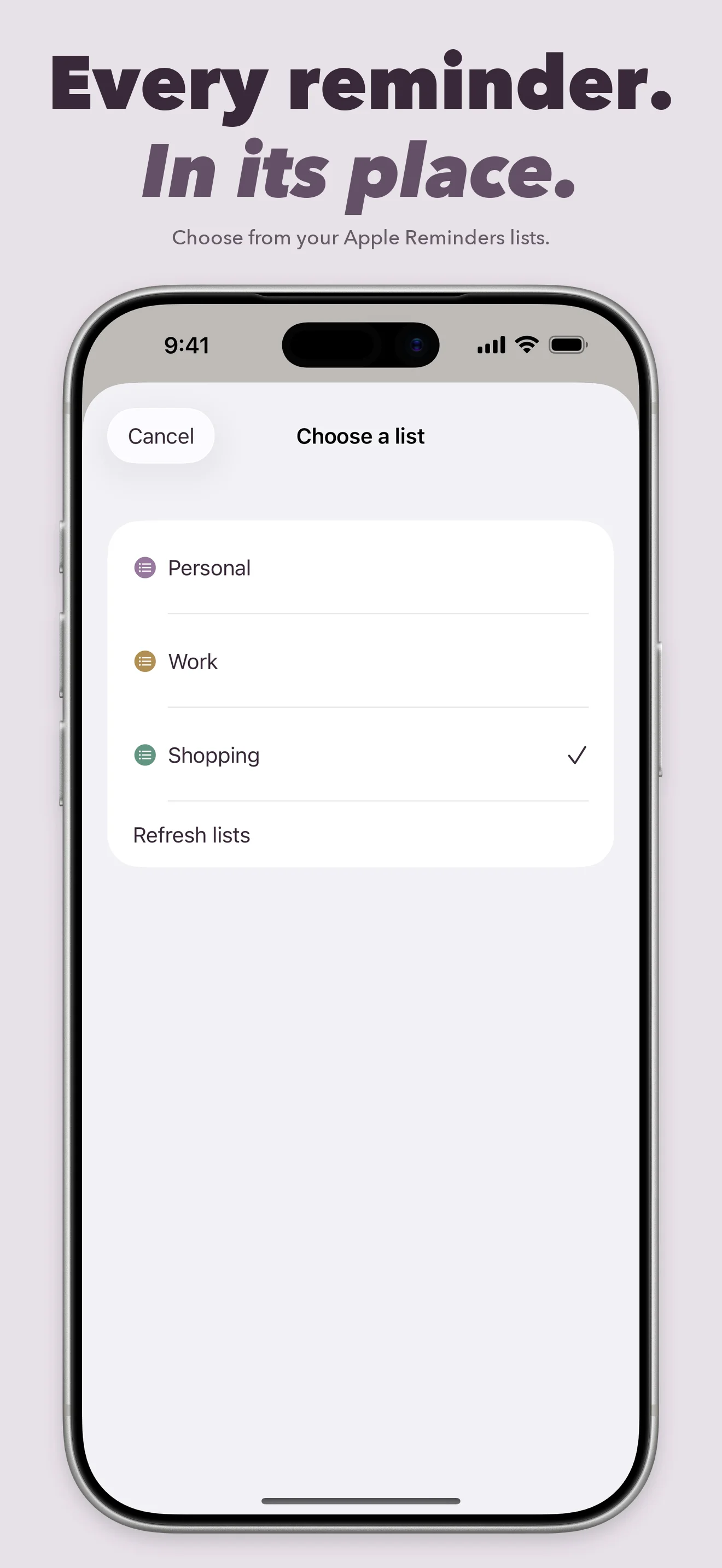
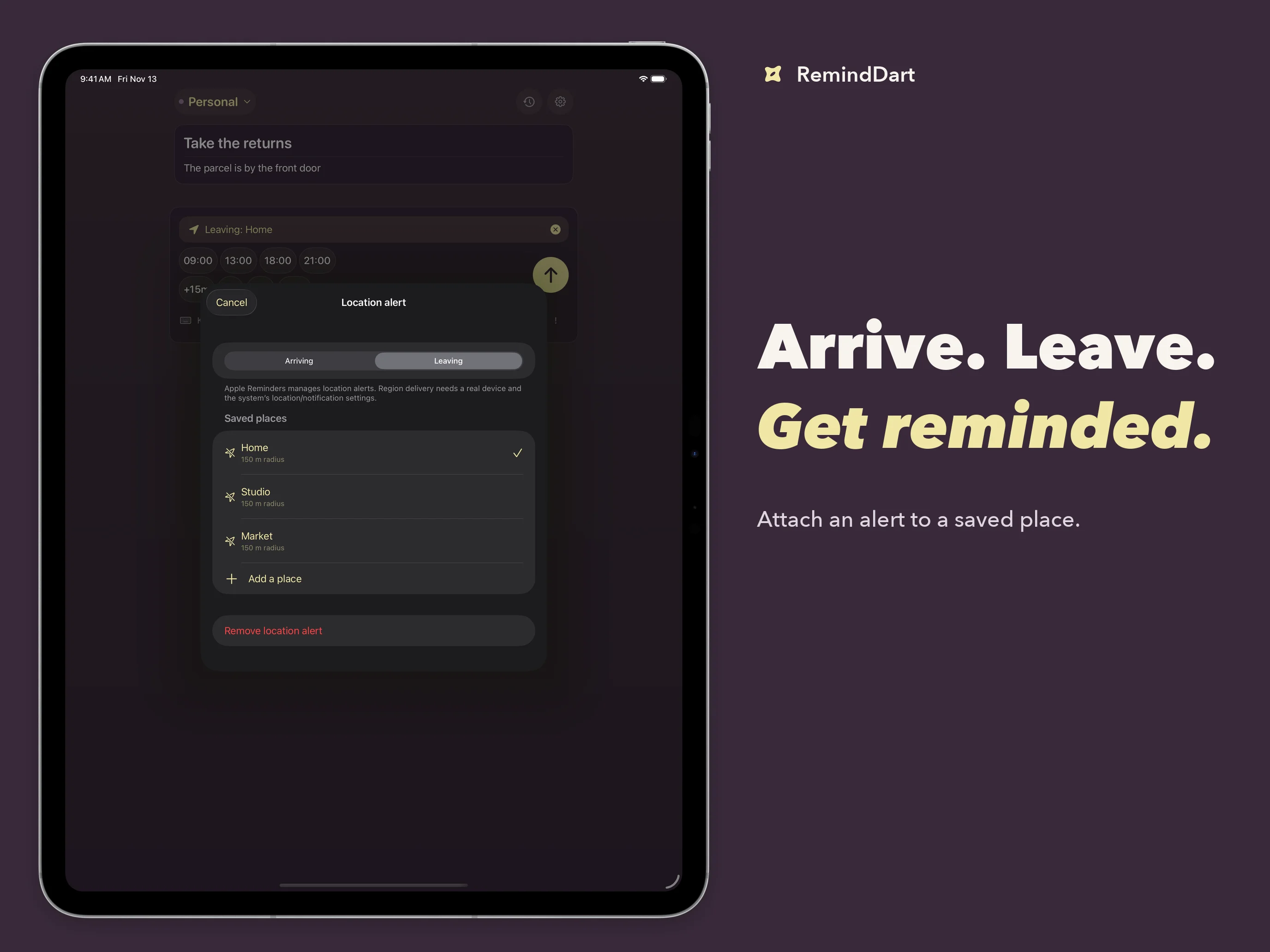
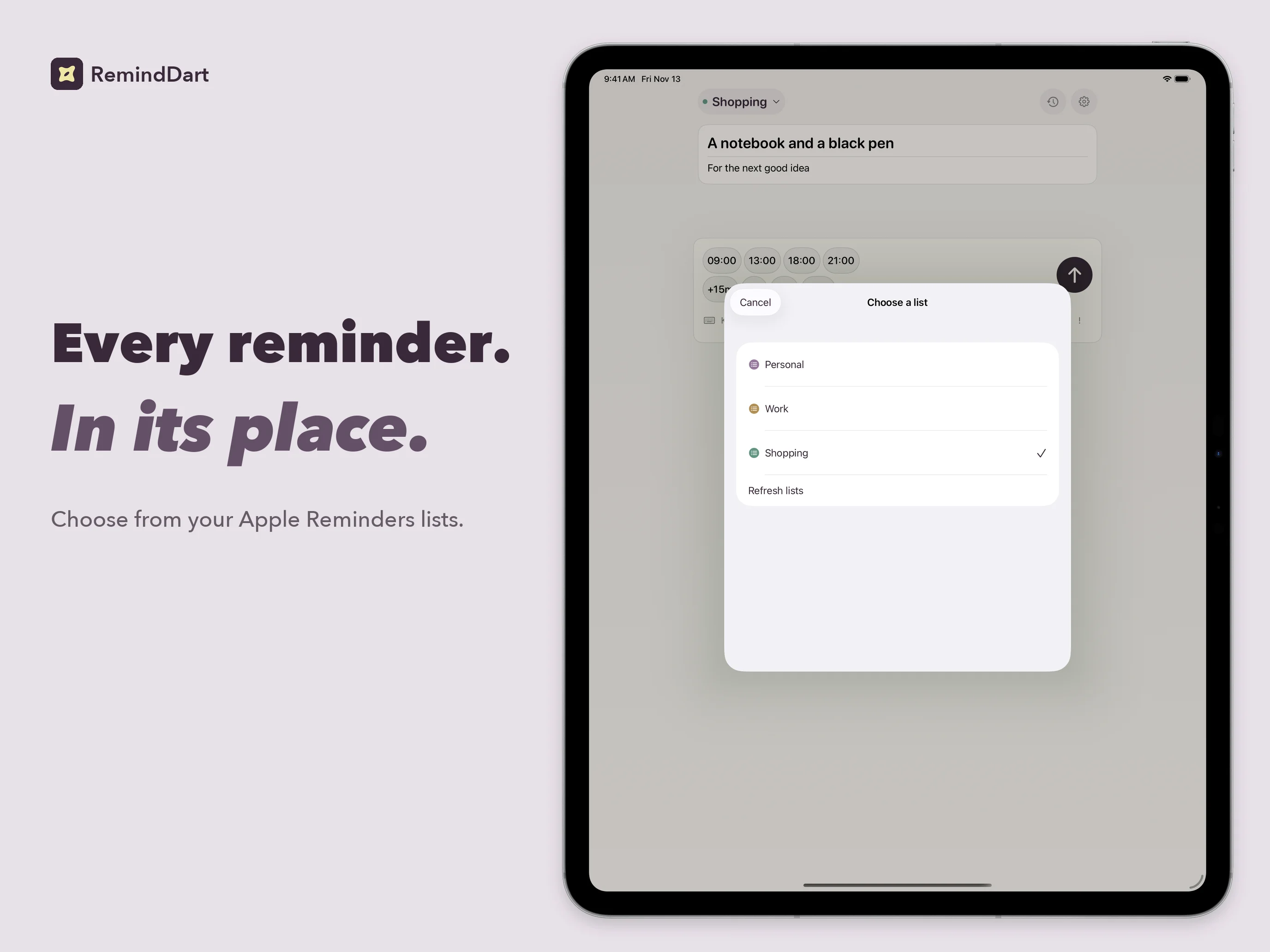
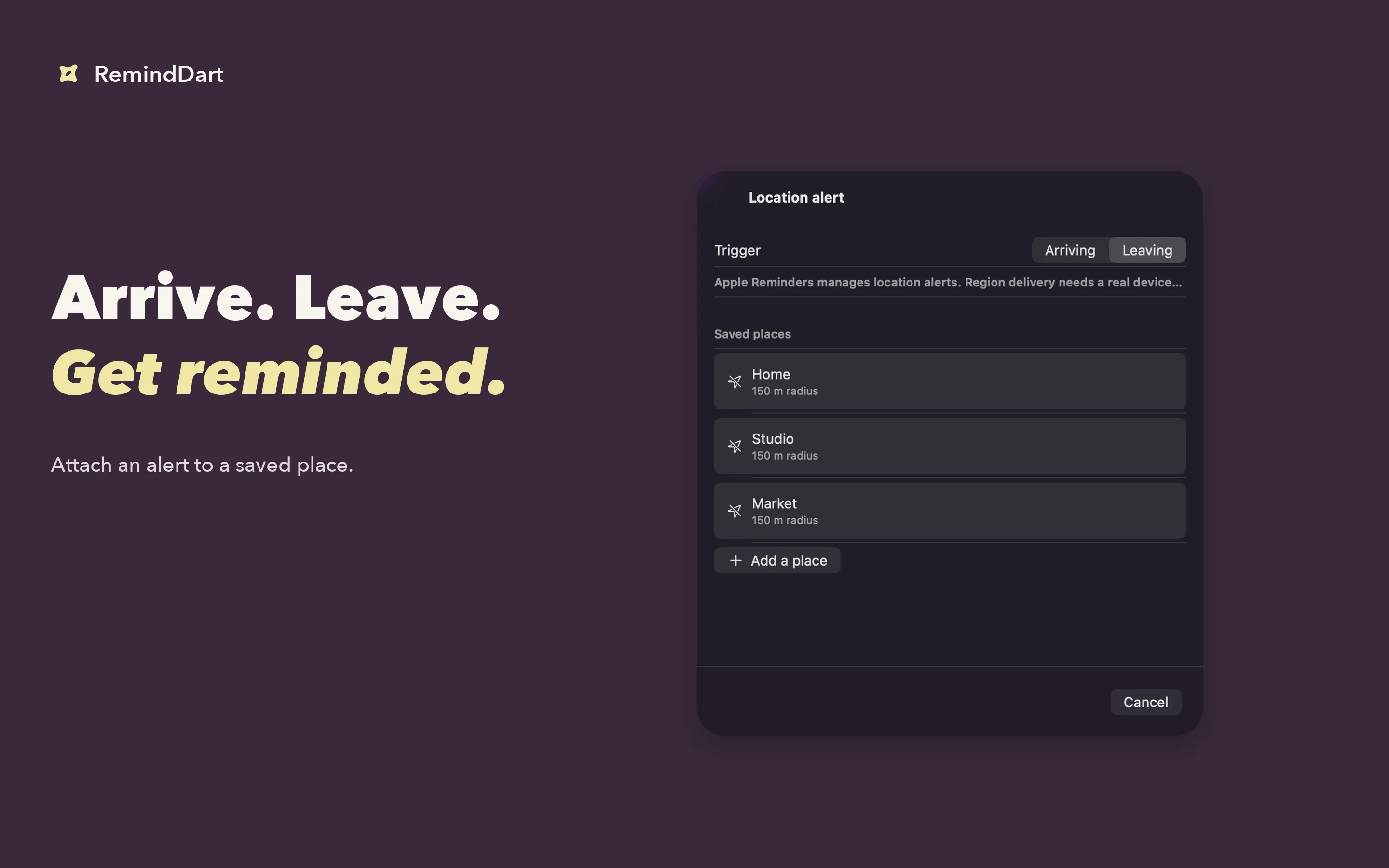
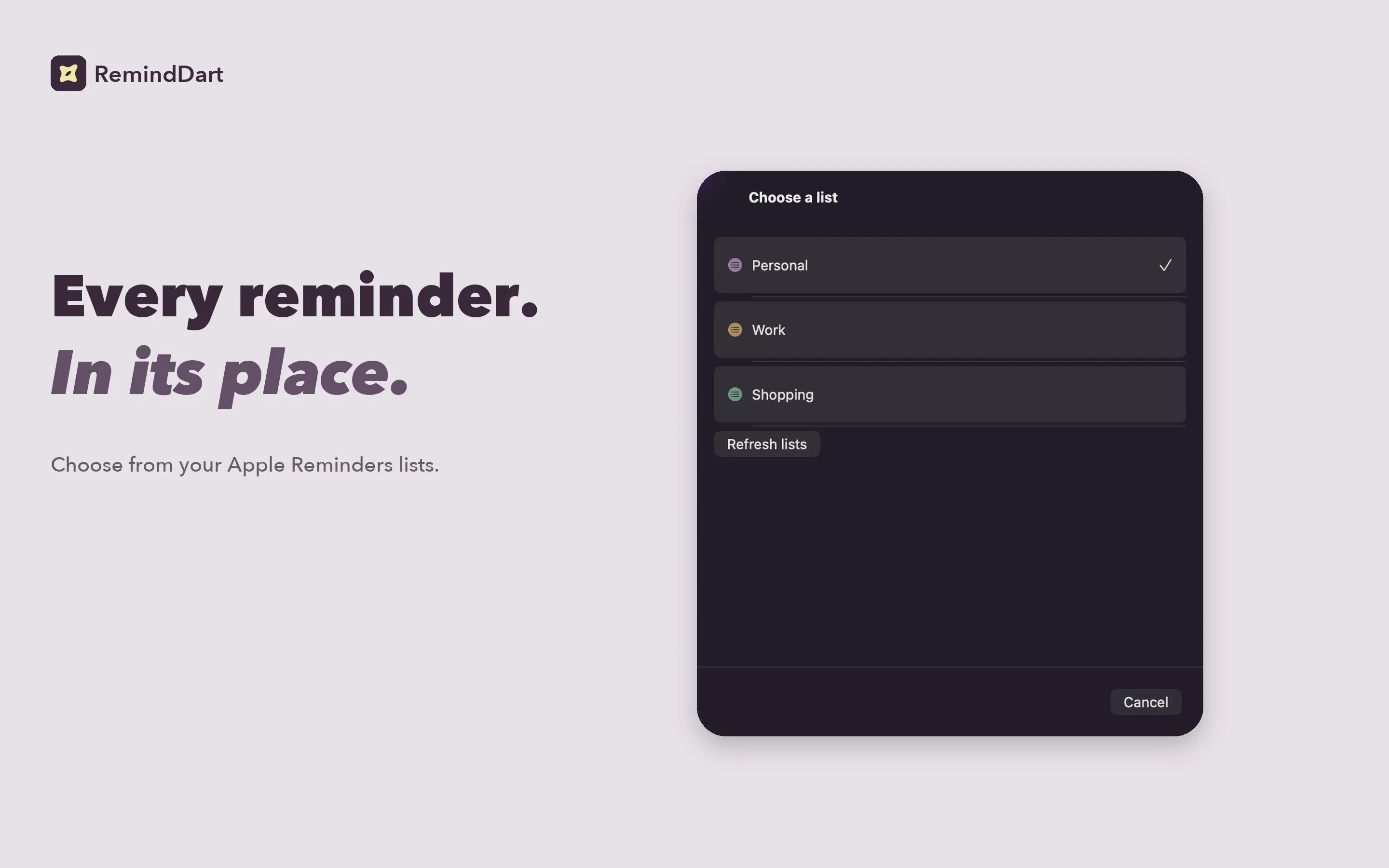
Choose among your writable Apple Reminders lists. Save named places and attach an arrival or departure alert. Find an address, use your current location with permission, or enter coordinates manually. Apple Reminders handles the resulting location alert.
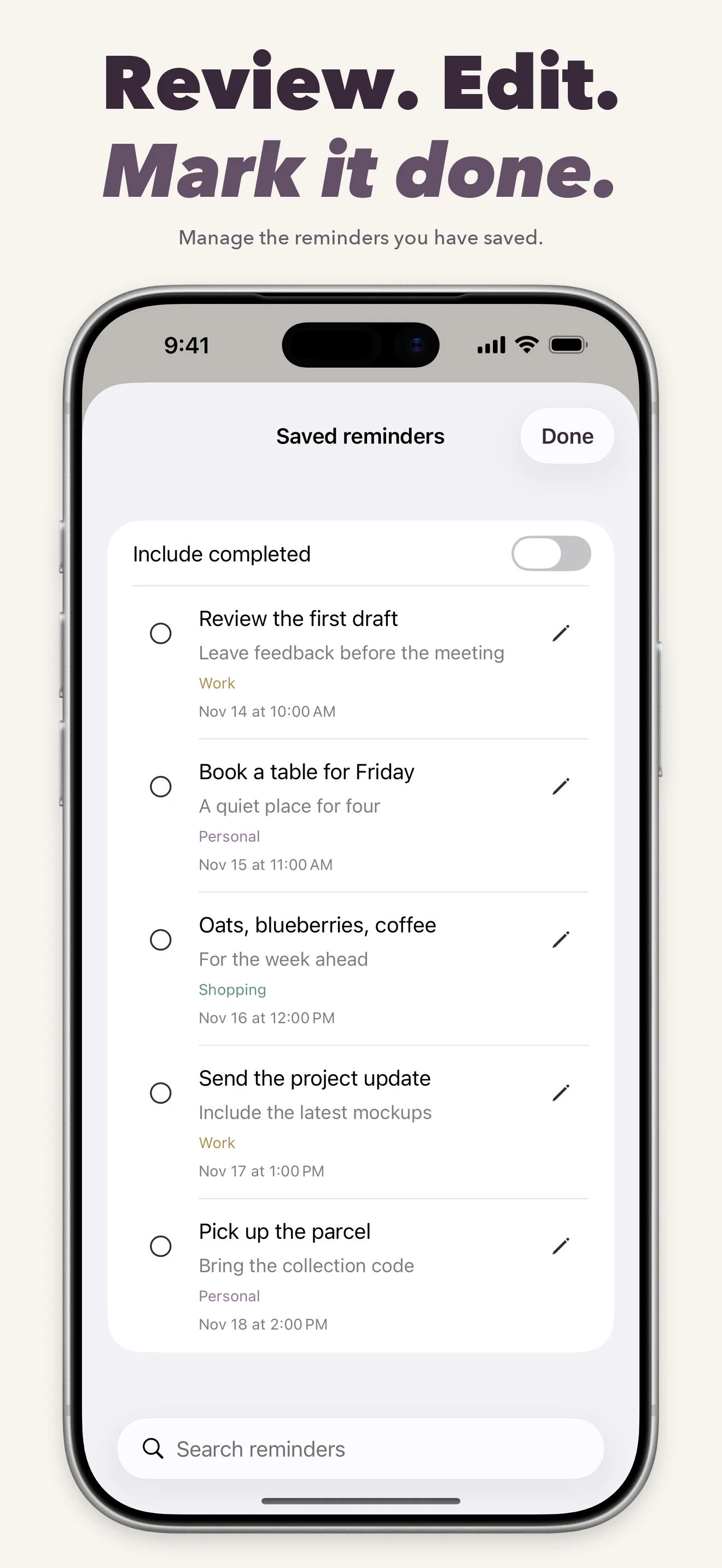
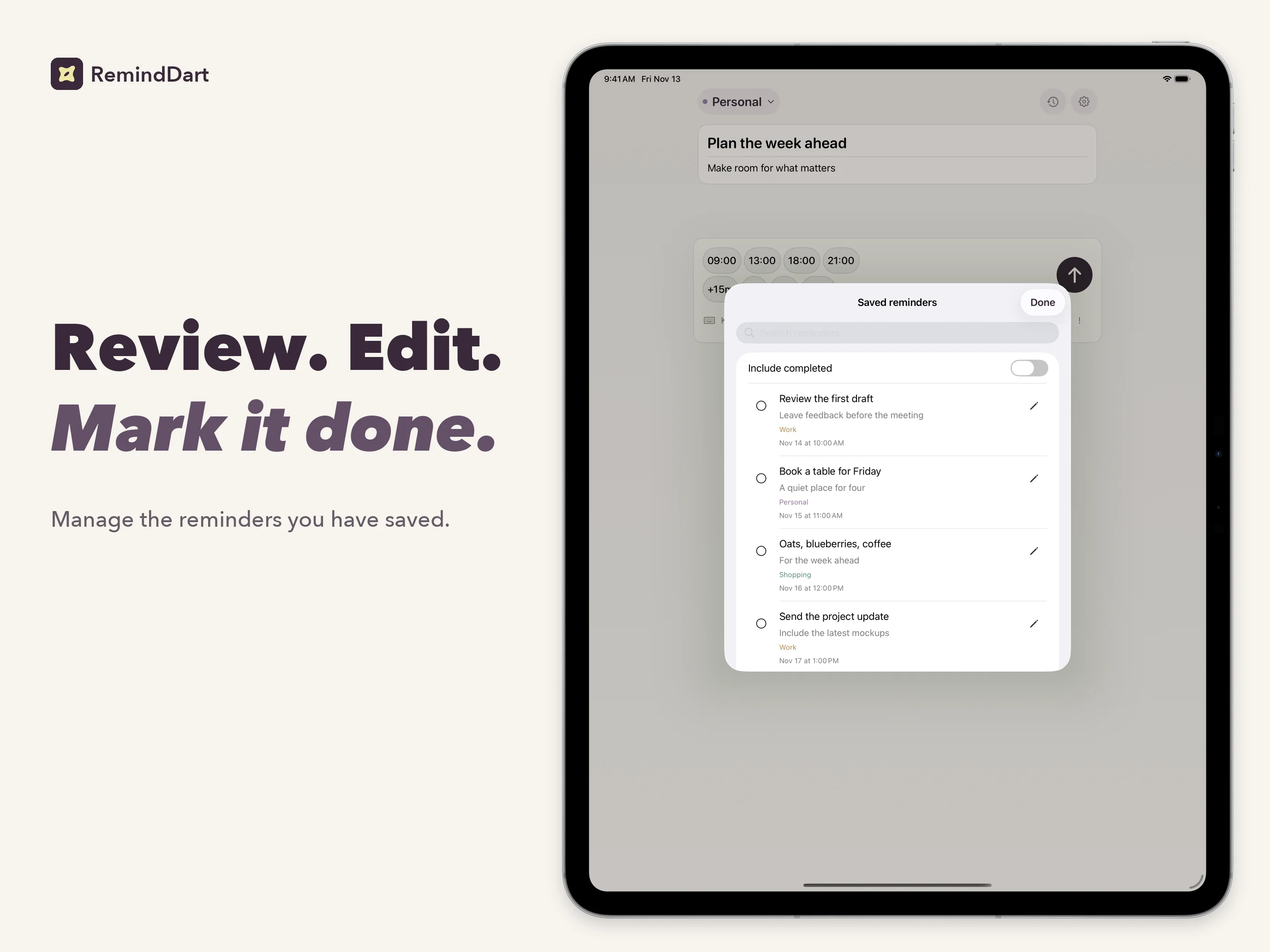
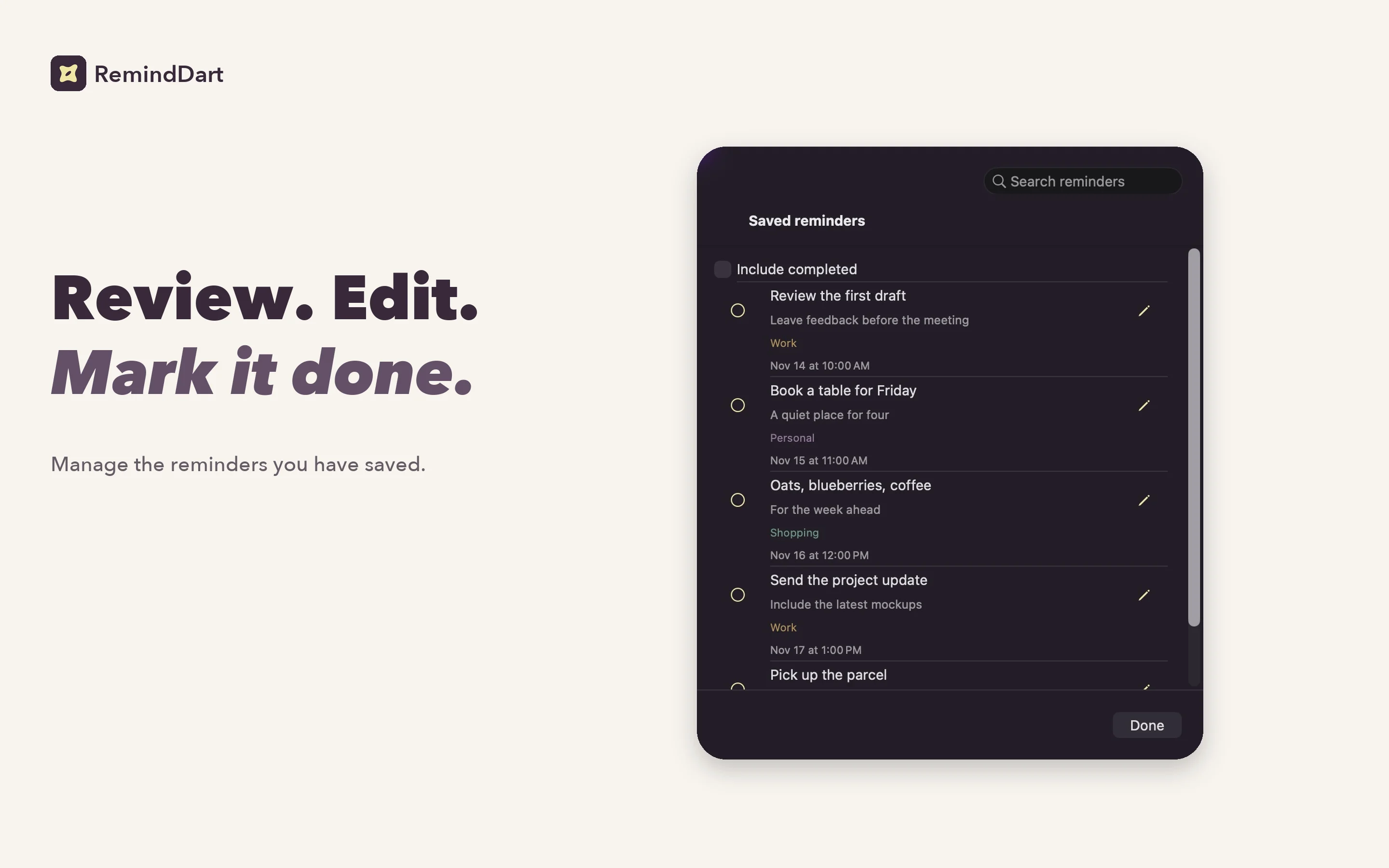
Open History to search, edit titles and notes, mark tasks complete, or confirm deletion. These are your actual system reminders, and changes can sync through the account that owns the list. Undo can remove the most recently saved reminder and restore its draft when the composer is empty.
Capture from where you are
On iPhone and iPad, send text or a link from the share sheet, or open capture from a widget or Control Center. Shortcuts can open a draft or save a reminder with a title, notes, and optional due date. On Mac, press Command-Return to save and continue, or Command-comma to open settings.
Unsaved drafts are kept locally. Optional draft nudges help you return to unfinished input; on supported iOS devices, a Live Activity can show the waiting draft. These nudges are separate from the alarms on saved reminders.
Frequently asked questions
Do I need a separate account?
No RemindDart account is required. Allow access to Apple Reminders and choose a writable list. Reminder storage and account synchronization follow your system Reminders settings.
Does it work offline?
Typing, schedule parsing, and saving to an accessible local Reminders database work offline. Account synchronization, address searches, and fetching a shared webpage’s title can require a connection. Coordinates can be entered without an address search.
Do my drafts and settings sync between devices?
Drafts are local to each installation. The current development build does not enable RemindDart’s optional iCloud synchronization for saved places and list order. That is separate from any synchronization provided by your Apple Reminders account.
Does deleting in History only remove a local copy?
No. History reads the system Reminders database. Completing, editing, or deleting an item changes the actual reminder and may affect other devices or people using its list. Uninstalling RemindDart does not delete those reminders.
Is Apple Intelligence required?
No. Core capture and schedule parsing do not require Apple Intelligence. The optional Shorten title feature requires Apple Intelligence to be available and enabled on a supported device. You review a suggestion before applying it, and the original text is kept in Notes.
Questions about RemindDart?
Find setup information and get in touch on the support page.
← All apps